

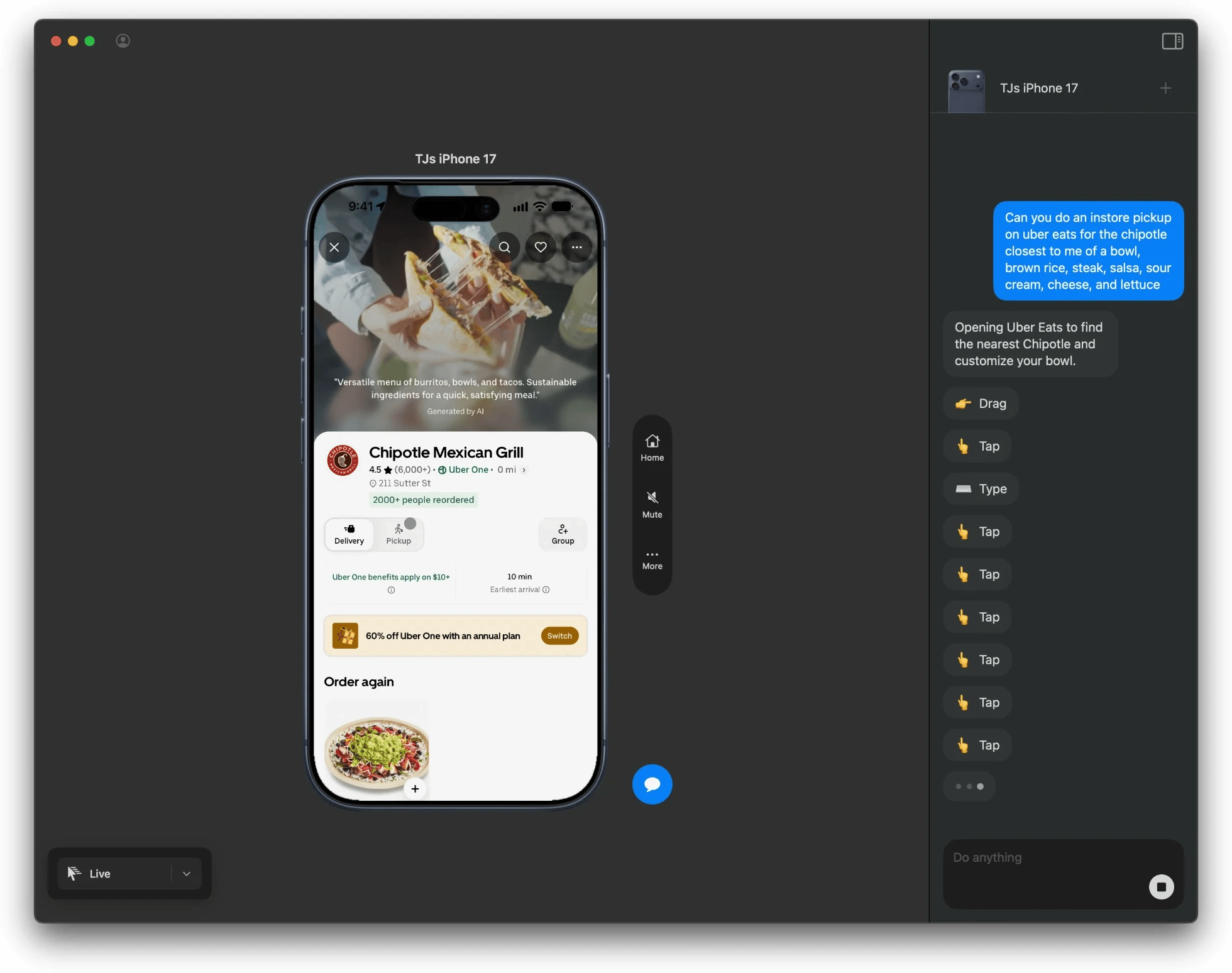
Connected phones
The main window shows the live screen of every iPhone connected to this Mac. To add a phone, plug it in. It goes through the same trust, screen, and Bluetooth checks as the first one. See Setup. Each phone has to stay plugged in, unlocked, and paired with the Mac over Bluetooth. If a phone isn’t ready, the app tells you why and what to do.Gestures and device controls
You can control a phone by hand from the Mac app. Pick a gesture and click on the phone’s screen. The gestures are tap, double tap, triple tap, tap and hold, flick, drag, and hold and drag. Live lets you click and drag on the screen like a finger. Home goes to the Home Screen. Use manual control to test the connection, set up a phone before a task, or take over while an agent is working. Your Mac’s keyboard doesn’t type on the phone.Agent chat
The built-in agent lets you try TapKit without setting up another tool. Open a phone’s chat and type a task:Add eggs to my Groceries list in RemindersThe agent looks at the screen, acts, and repeats until the task is done or it needs your input. Each step shows on the phone and in the chat, and you can stop the agent at any time. The agent can use any connected phone, and asks which one if your task doesn’t say. TapKit doesn’t save chats when you quit.