

1. Add the TapKit marketplace
- Open Cowork in the Claude app.
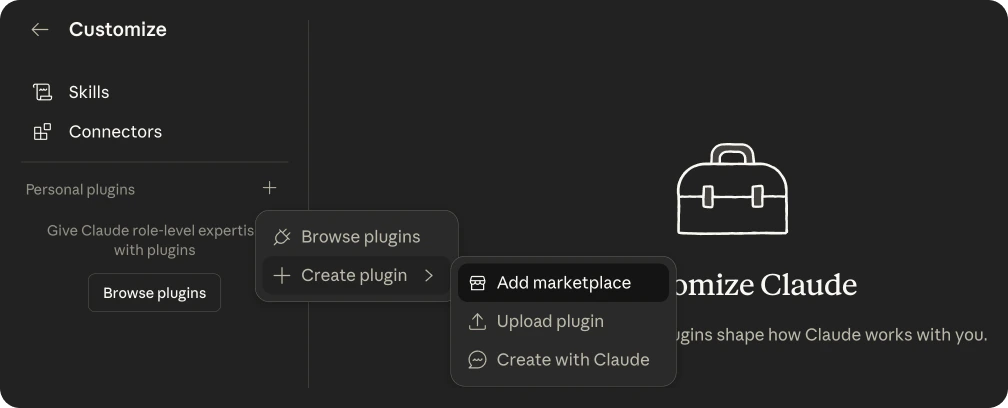
- In the left sidebar, click Customize.
- Go to Personal Plugins and click the + button.
- In the popup, hover over Create Plugin.
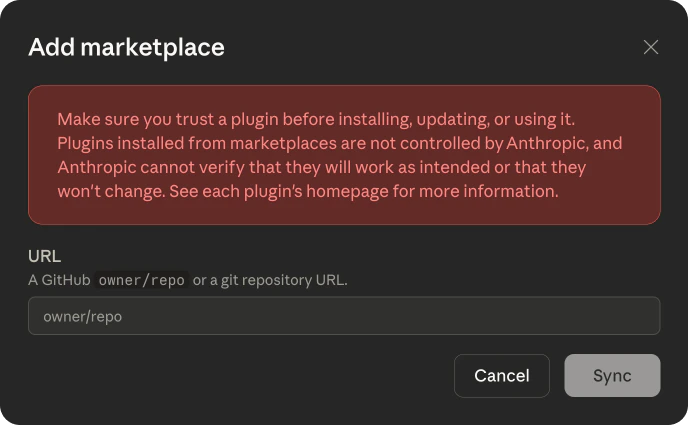
- Click Add Marketplace.
- Paste this and confirm:
See screenshots
See screenshots
2. Install the plugin
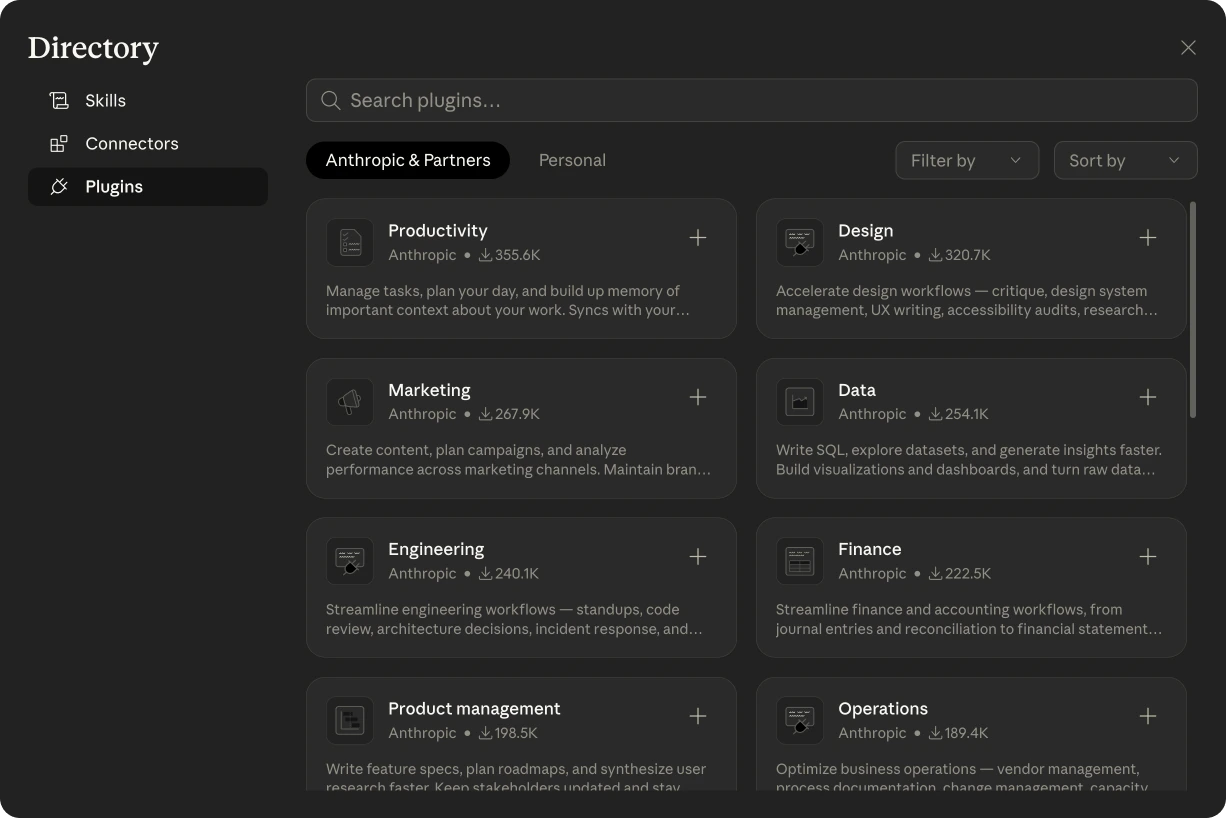
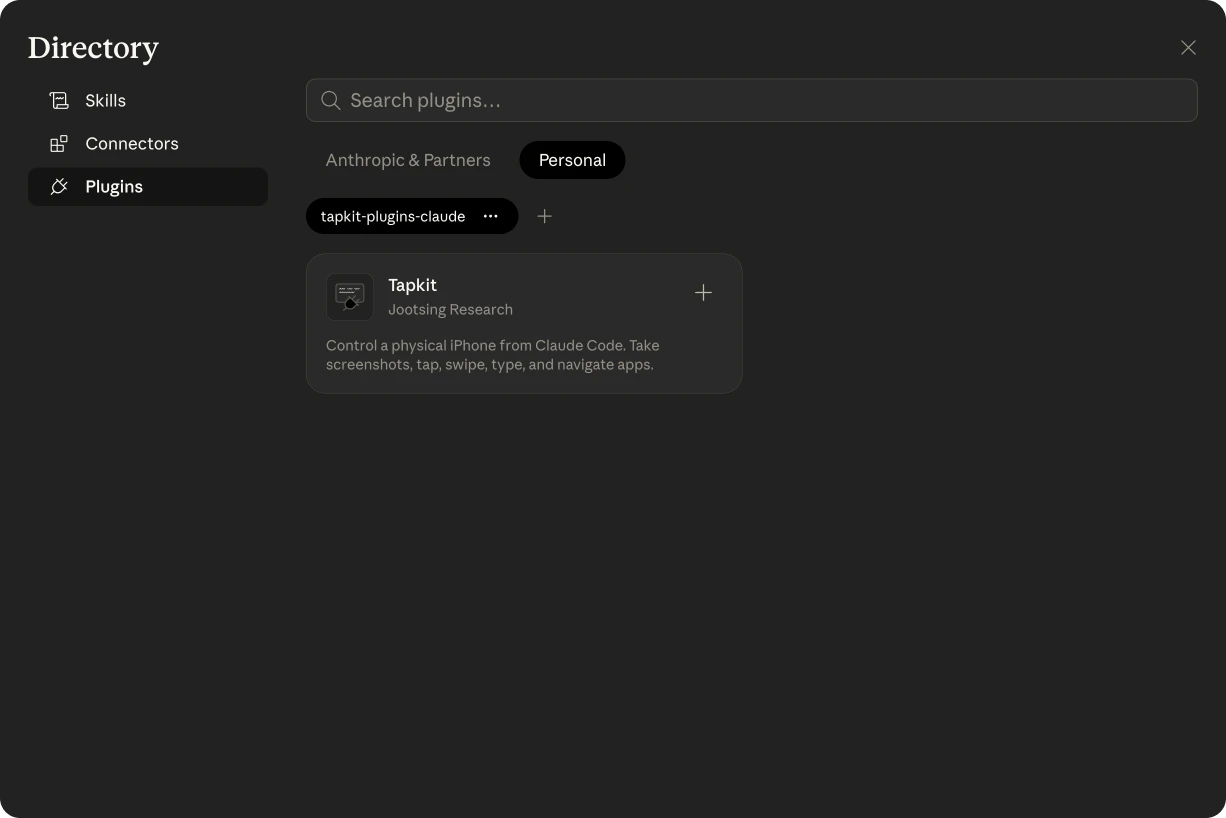
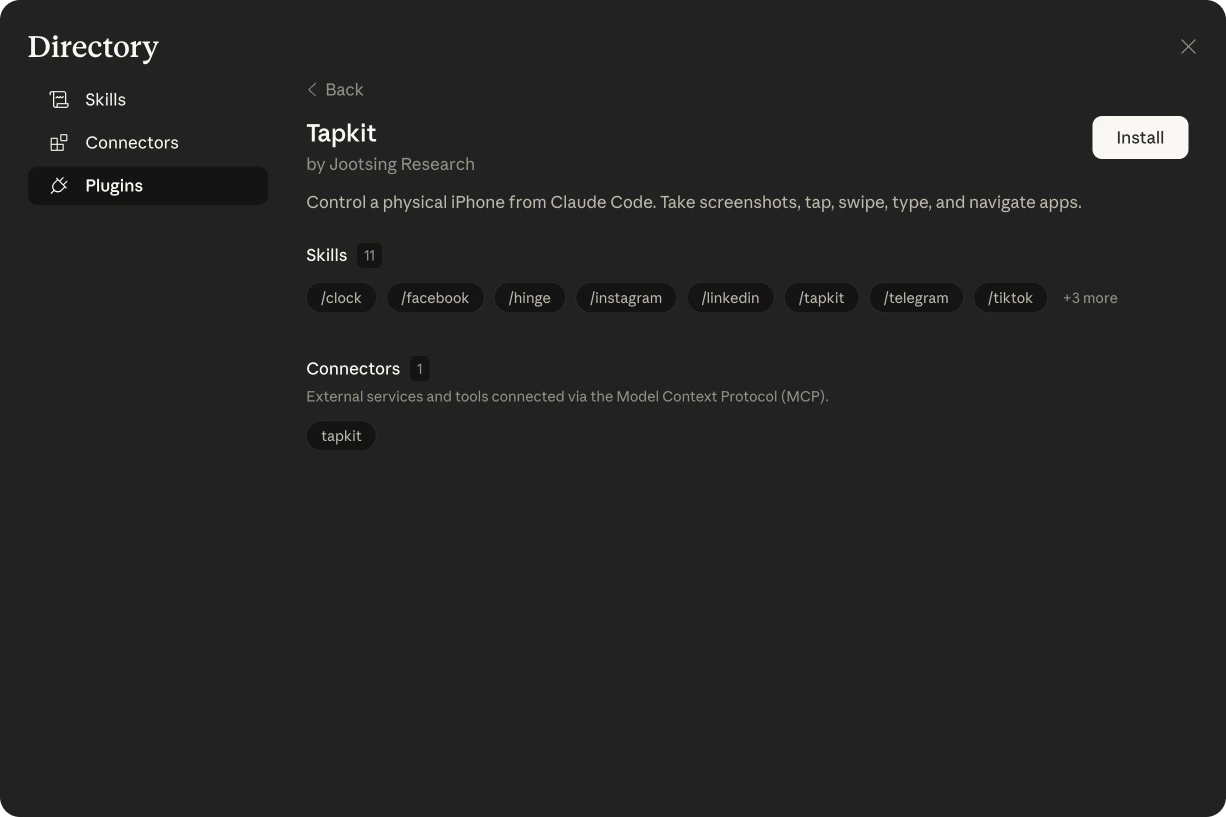
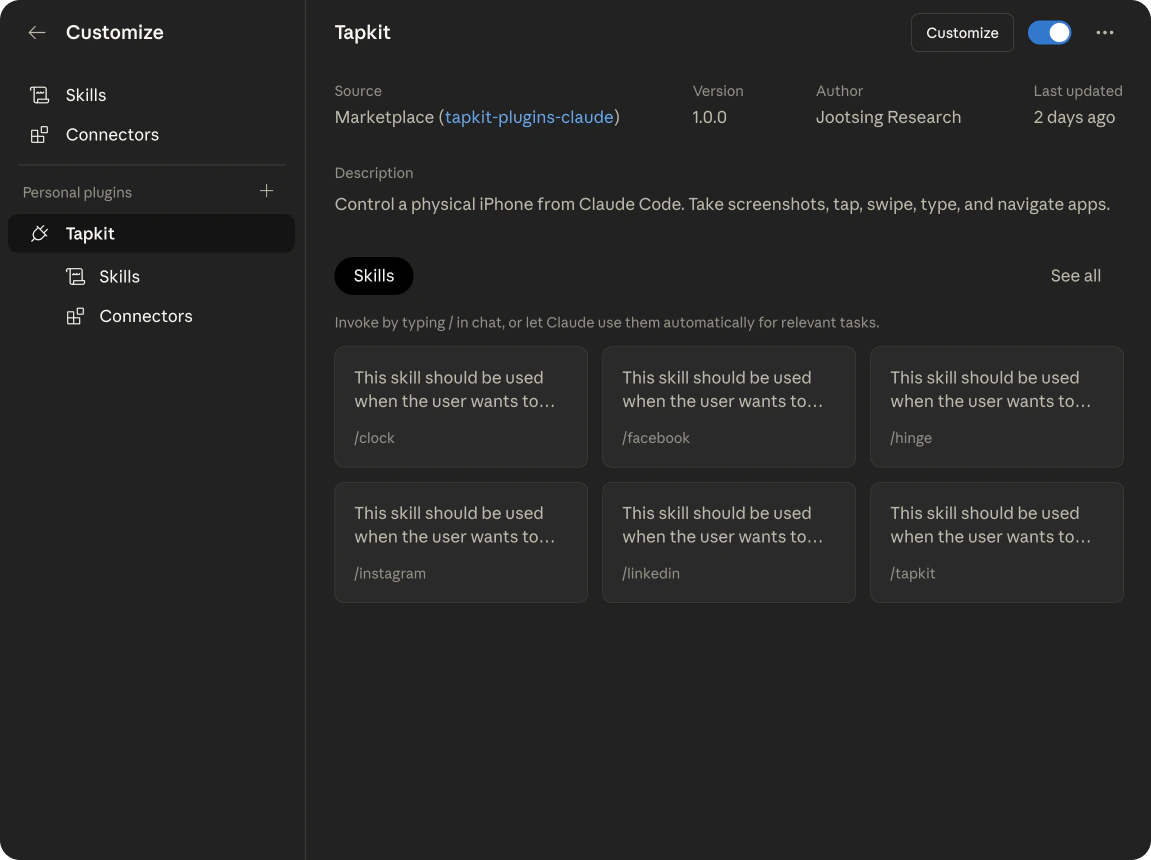
Still under Customize in Cowork, click Browse Plugins. Find TapKit in the list, click Install, then click Manage. TapKit now appears under Personal Plugins in the Customize sidebar.See screenshots of Browse Plugins
See screenshots of Browse Plugins
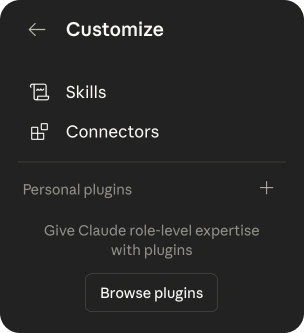
See screenshots of installing TapKit
See screenshots of installing TapKit
3. Allow the tools
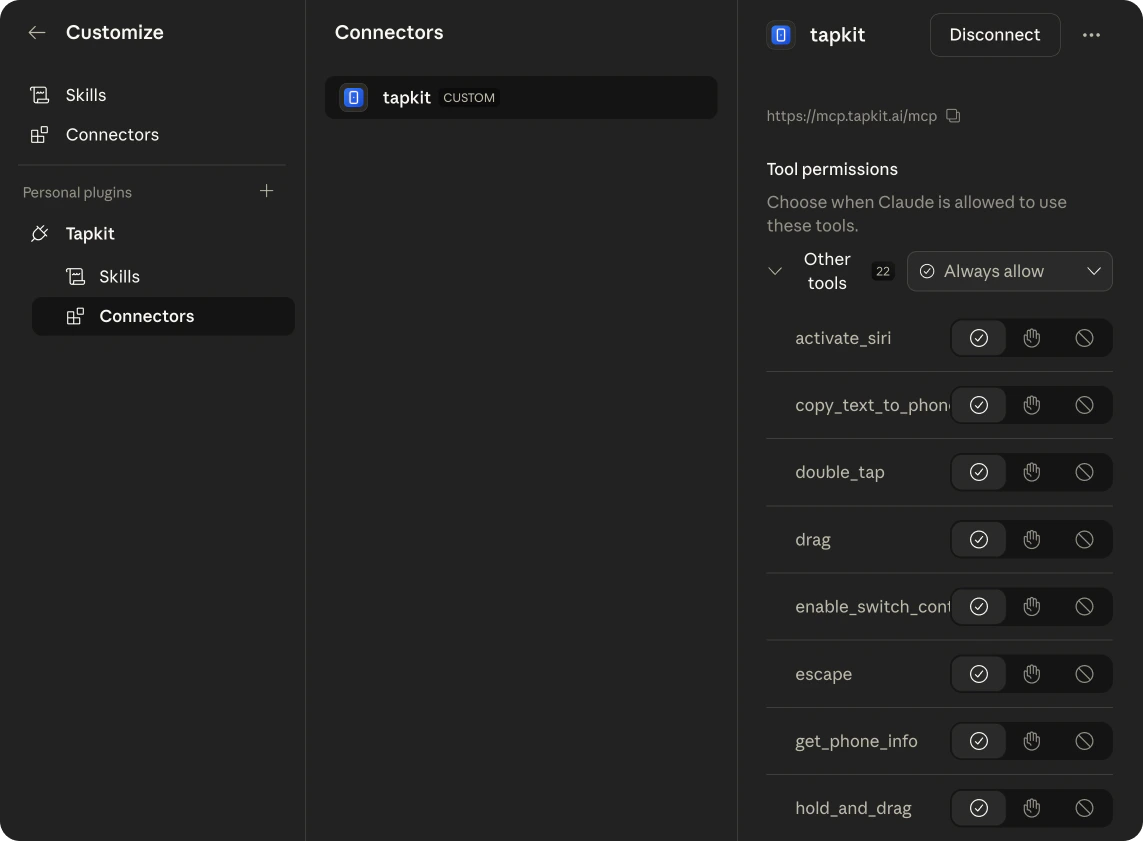
In the Customize sidebar, click the TapKit plugin, click Connectors, and select the TapKit connector. Set its tool permission to Always allow.See screenshots
See screenshots
4. Sign in
The first time Claude uses TapKit, it opens TapKit in your browser. Sign in and click Allow access.Example prompts
- “Open Settings and take a screenshot”
- “Go to Safari and search for flights to Denver”
- “Open DoorDash and order from the first restaurant”
- “Take a screenshot and tell me what apps are on the home screen”
Troubleshooting
Claude says TapKit isn't connected
Claude says TapKit isn't connected
Open the TapKit connector under Customize and reconnect it.
Claude can't find a phone, or the phone is offline
Claude can't find a phone, or the phone is offline
Check that the Mac app is open and signed in, and isn’t showing a setup message for the phone. Ask Claude to “list my phones” to see what TapKit sees.
Actions time out
Actions time out
Unlock the phone and check that it’s still plugged in. If the Mac app shows a problem with the phone, fix that first.