> ## Documentation Index
> Fetch the complete documentation index at: https://docs.tapkit.ai/llms.txt
> Use this file to discover all available pages before exploring further.
# Switch Control Setup
> Connect your iPhone to your Mac over Switch Control
These instructions are for anytime you need to connect your iPhone to your Mac over Switch Control — whether it's your first time during setup or you're reconnecting later.
## Step 1: Open the Switch Control menu
* **During onboarding:** The Mac app will show a dedicated page — click **Open Switch Control Menu**.
* **After onboarding:** In the Mac app, click **Open Menu** in the bottom left, then click **Open Switch Control Menu**.
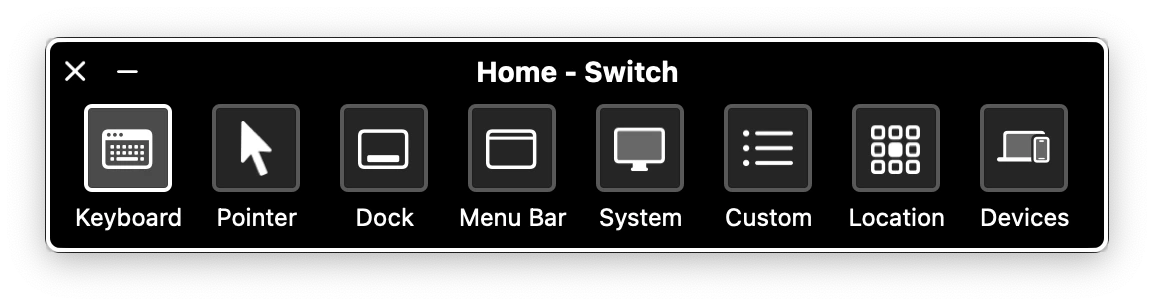
A black bar called the **Switch Control Home menu** will appear on your screen.
## Step 2: Connect to your iPhone
1. Click **Devices** in the Switch Control bar.
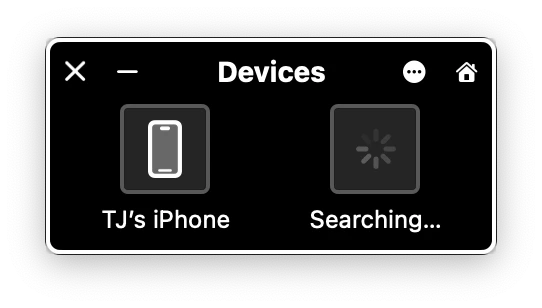
 2. Select your **iPhone** from the device list.
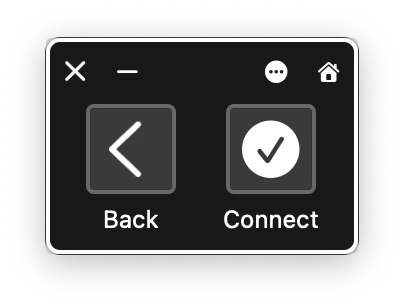
 3. Click **Connect**.
 Once connected, your phone's screen will appear in the Mac app and you're ready to go.
Your iPhone must be plugged in via USB for this step. Wi-Fi, Bluetooth, and iCloud are needed later for pairing but not for the initial connection.
## Troubleshooting
Make sure Switch Control is enabled on your Mac. Go to **System Settings > Accessibility > Switch Control** and verify it's turned on with the correct switches configured.
Make sure your iPhone is still plugged in via USB and that Switch Control is enabled on the phone. Try unplugging and replugging the cable.
Restart the Mac app and try again. If the issue persists, check that both devices have Switch Control enabled and that no other Switch Control sessions are active.
If you're experiencing issues not covered here, [contact our support team](mailto:support@tapkit.ai).
Once connected, your phone's screen will appear in the Mac app and you're ready to go.
Your iPhone must be plugged in via USB for this step. Wi-Fi, Bluetooth, and iCloud are needed later for pairing but not for the initial connection.
## Troubleshooting
Make sure Switch Control is enabled on your Mac. Go to **System Settings > Accessibility > Switch Control** and verify it's turned on with the correct switches configured.
Make sure your iPhone is still plugged in via USB and that Switch Control is enabled on the phone. Try unplugging and replugging the cable.
Restart the Mac app and try again. If the issue persists, check that both devices have Switch Control enabled and that no other Switch Control sessions are active.
If you're experiencing issues not covered here, [contact our support team](mailto:support@tapkit.ai).