> ## Documentation Index
> Fetch the complete documentation index at: https://docs.tapkit.ai/llms.txt
> Use this file to discover all available pages before exploring further.
# Phone Setup
> Configure your iPhone for TapKit control
This guide covers everything you need to configure your iPhone for TapKit. It's the detailed version of Quickstart Step 3.
**Prerequisite:** Complete [Mac App Setup](/setup/mac-app) first. You'll need a USB cable to connect your iPhone to your Mac.
## Step 1: Plug in your iPhone
Connect your iPhone to your Mac via USB. The Mac app detects the phone automatically.
## Step 2: Trust and authorize
You may see one or both of these prompts:
* **On iPhone:** "Trust This Computer?" — tap **Trust** and enter your passcode
* **On Mac:** "Allow this phone to connect?" — click **Allow**
These prompts don't always appear (especially if you've connected before). If the Mac app doesn't recognize your phone after approving, unplug and replug the USB cable.
## Step 3: Headphone popup
A popup appears on your iPhone asking if the connected device is headphones or another device. Tap **Other Device**.
## Step 4: Install the setup shortcut
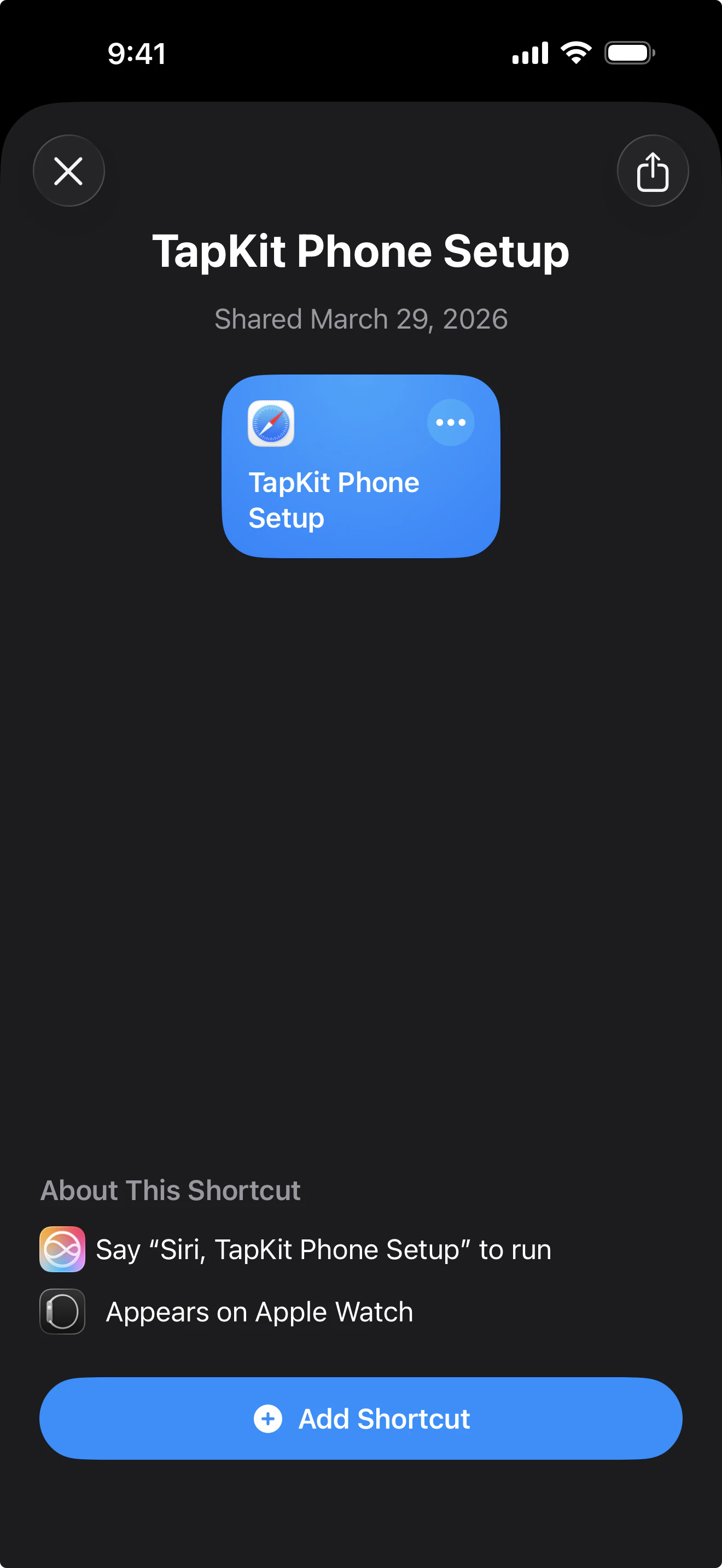
The Mac app shows a QR code on screen. Scan it with your iPhone camera. This will open the **TapKit Phone Setup** shortcut. Tap **Add Shortcut** to install it.
## Step 5: Run the TapKit Phone Setup shortcut
After installing, the shortcut should appear automatically. If it doesn't, open the Shortcuts app and check the first tab (called **Library** or **Shortcuts** depending on your iOS version). Tap **TapKit Phone Setup** to run it.
This is a guided setup experience built with Apple Shortcuts. It takes about five minutes — just read the instructions on screen and follow along.
After the setup shortcut is completed, return back to the Mac app.
## Step 6: Install the Use TapKit shortcut
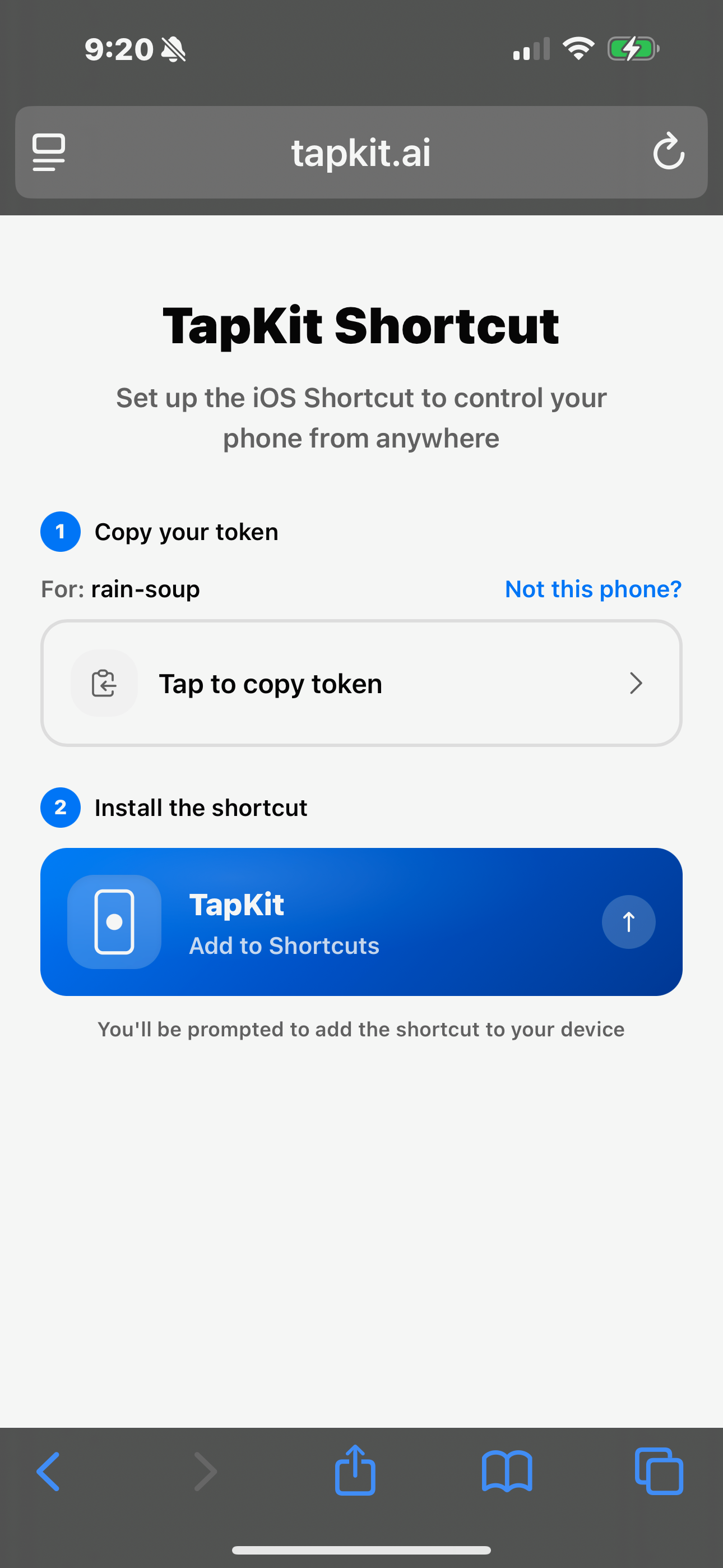
Scan the second QR code shown in the Mac app. This opens the TapKit website in a logged-in state.
1. Tap the **Tap to copy token** button to copy your token.
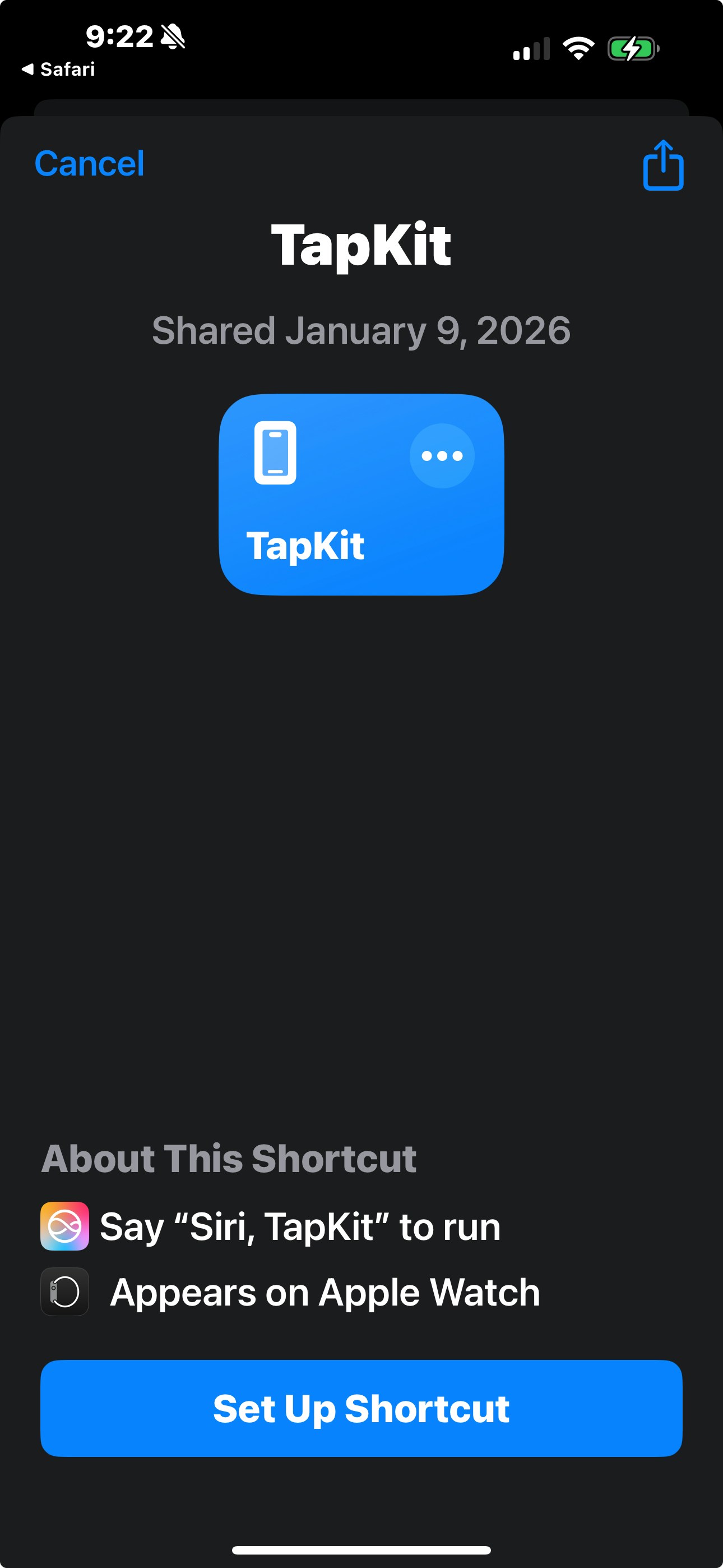
2. Tap the **Use TapKit** shortcut to open the install prompt.
3. Tap **Set Up Shortcut**.
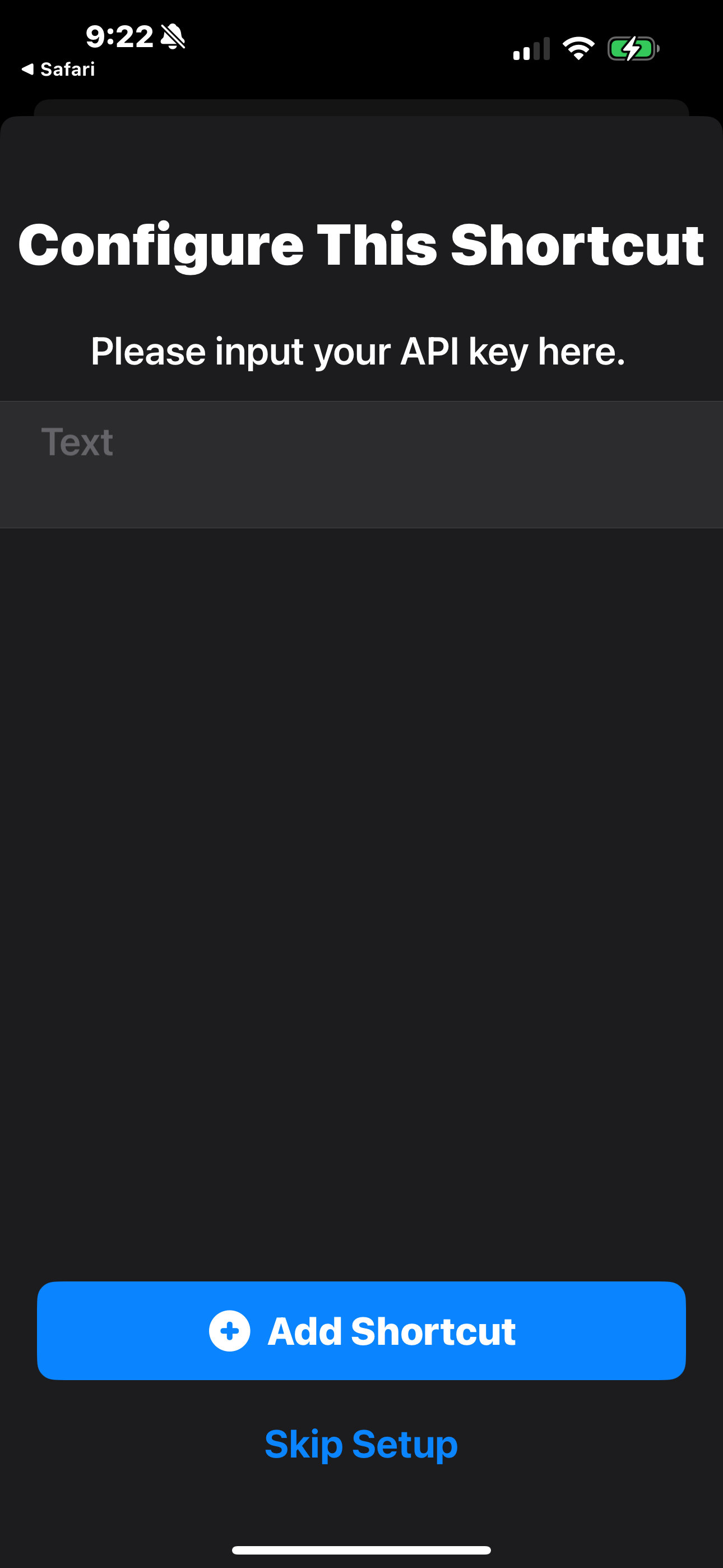
4. Paste the token into the API key field.
5. Tap **Add Shortcut**.
## Step 7: Run the Use TapKit shortcut
1. Navigate back to the first tab of the Shortcuts app (called **Library** or **Shortcuts** depending on your iOS version).
2. Tap the **Use TapKit** shortcut to run it.
3. Approve any permission popups that appear.
The TapKit Shortcut must be the **first shortcut** in your Shortcuts app. If you have other shortcuts, open the Shortcuts app, tap Edit, and drag TapKit to the first position.
***
## Done
Your phone is set up. The Mac app should show your phone as connected and ready.
Go back to the Quickstart and try your first command.
Connect TapKit to Claude, Codex, or other AI tools.
## Troubleshooting
Unplug the USB cable, wait a few seconds, and plug it back in. Make sure to approve any "Trust This Computer?" or "Allow" prompts that appear on either device.
Your phone can look like it's on Wi-Fi but not actually be connected. Go to **Settings > Wi-Fi** on your iPhone and explicitly tap your network to reconnect. This is the most common troubleshooting issue.
Make sure your iPhone camera is in photo mode (not video or portrait). Hold the phone steady about 6-8 inches from the screen. If the QR code still won't scan, try increasing your Mac's screen brightness.
Run the Shortcut again — it's safe to re-run. If it continues to fail, make sure you're running iOS 16 or later and that you have the Shortcuts app installed.
Go to **Settings > Shortcuts** on your iPhone and enable **Allow Running Scripts** and **Private Sharing**. This allows installing Shortcuts from sources other than the Shortcuts Gallery.
This can happen if the screencast connection drops and reconnects. Tap **Other Device** each time. If it happens frequently, make sure your USB cable is securely connected.
If you're experiencing issues not covered here, [contact our support team](mailto:support@tapkit.ai).