> ## Documentation Index
> Fetch the complete documentation index at: https://docs.tapkit.ai/llms.txt
> Use this file to discover all available pages before exploring further.
# Mac App Setup
> Install and configure the TapKit Mac app
This guide walks through every step of setting up the TapKit Mac app, from download to "phone connected." If you got stuck during the [Quickstart](/quickstart), this is where you'll find the details.
## Step 1: Download and install
1. Download the TapKit Mac app. If you don't have it, you can download it here.
2. Open **TapKit.dmg** from your Downloads folder.
3. Drag **TapKit** into your **Applications** folder.
4. Launch **TapKit** from Applications.
## Step 2: Sign in
When you first launch TapKit, it'll open a sign-in page in your browser. Don't worry if you don't have an account — this will create one for you. After signing in, you'll be redirected back to the app.
## Step 3: Grant permissions
The Mac app needs three macOS permissions to work. You'll be prompted for each one. For a deeper explanation of why each permission is needed (and what it's *not* used for), see [Security & Privacy](/security).
### Automation
Allows TapKit to run macOS Shortcuts for phone communication. Click **OK** when prompted.
Screenshot coming soon
### Camera
Allows TapKit to capture the phone's screen via the screencast stream. Click **OK** when prompted.
Screenshot coming soon
### Accessibility
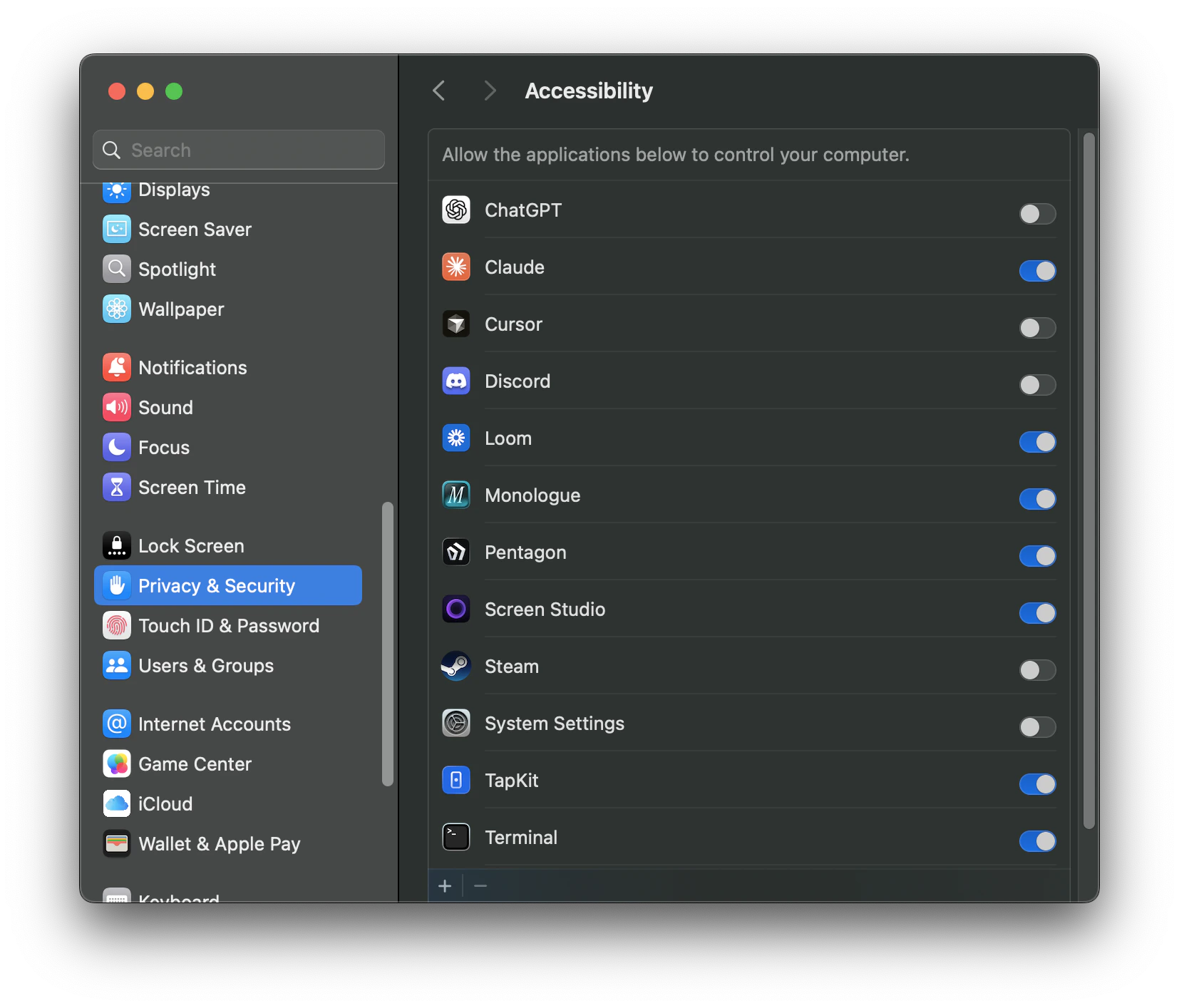
Allows TapKit to control Switch Control and send commands to the phone. When the system dialog appears, click **Open System Settings** and enable TapKit.
If a permission dialog doesn't appear, you'll need to add TapKit manually. Go to **System Settings > Privacy & Security**, navigate to the respective permission (Automation, Camera, or Accessibility), and add TapKit from there.
## Step 4: Switch Control configuration
### Enable Switch Control
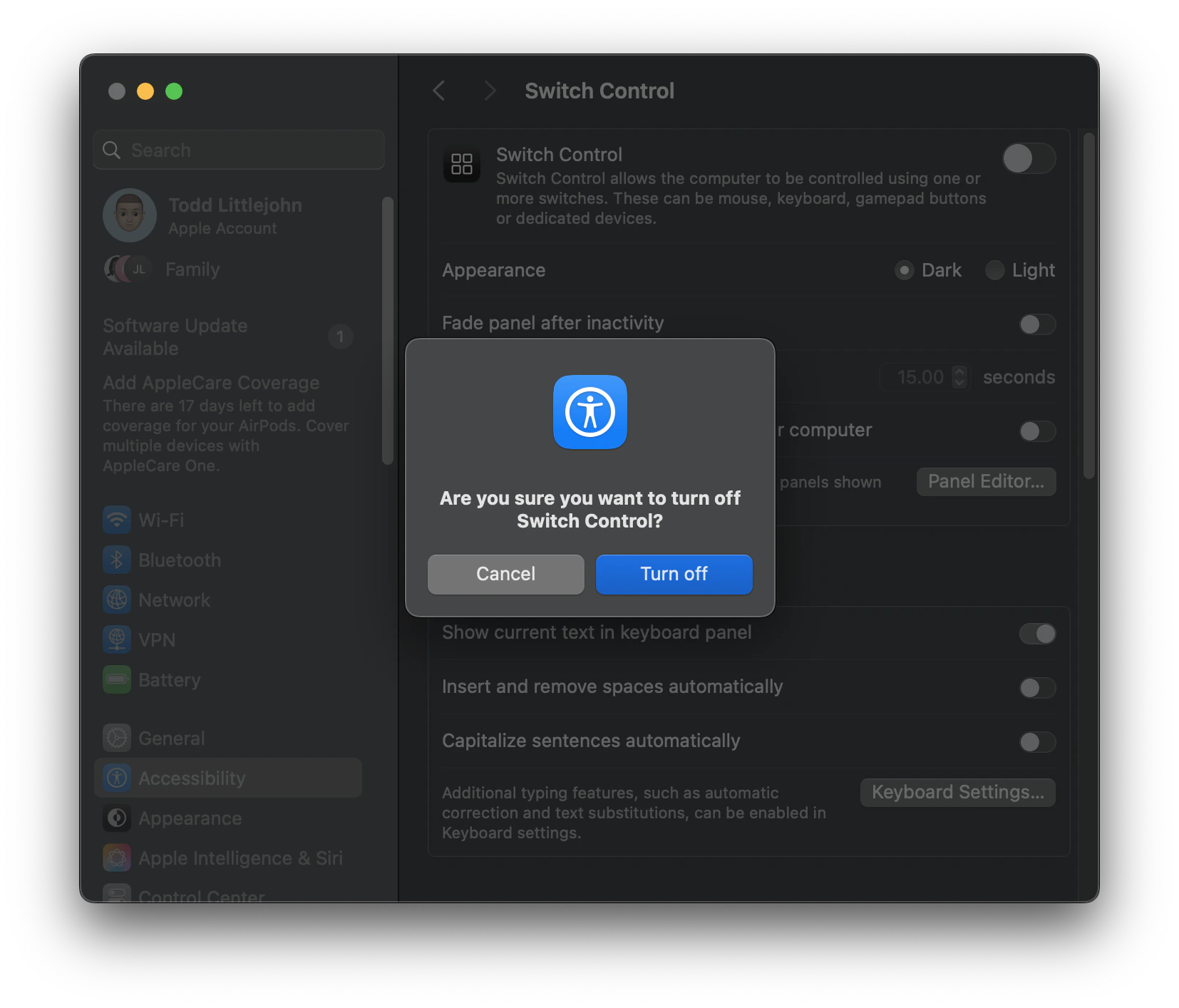
The app will automatically open System Settings and toggle on Switch Control for you. It'll prompt you for your Mac password — enter it to authorize the change. Once done, it'll automatically close System Settings. You'll see a dialog asking about Switch Control — just hit **Turn Off**.
### Configure Switch Control
TapKit then runs an automatic configuration flow that sets up Switch Control profiles and settings. This happens in the background — you'll see a brief progress indicator.
GIF coming soon
**What's happening:** TapKit is configuring keyboard switches (Tab, Escape, Control, System) that map to Switch Control actions. It also sets scanning mode, cursor speed, and menu item ordering. You don't need to do any of this manually.
You can verify the configuration was applied by going to **System Settings > Accessibility > Switch Control** and checking that the switches are set up:
| Key | Switch Control Action |
| ----------- | --------------------- |
| **Tab** | Select Item |
| **Escape** | Move to Next Item |
| **Control** | Restart Scanning |
| **System** | Stop Scanning |
## Step 5: Install macOS Shortcut
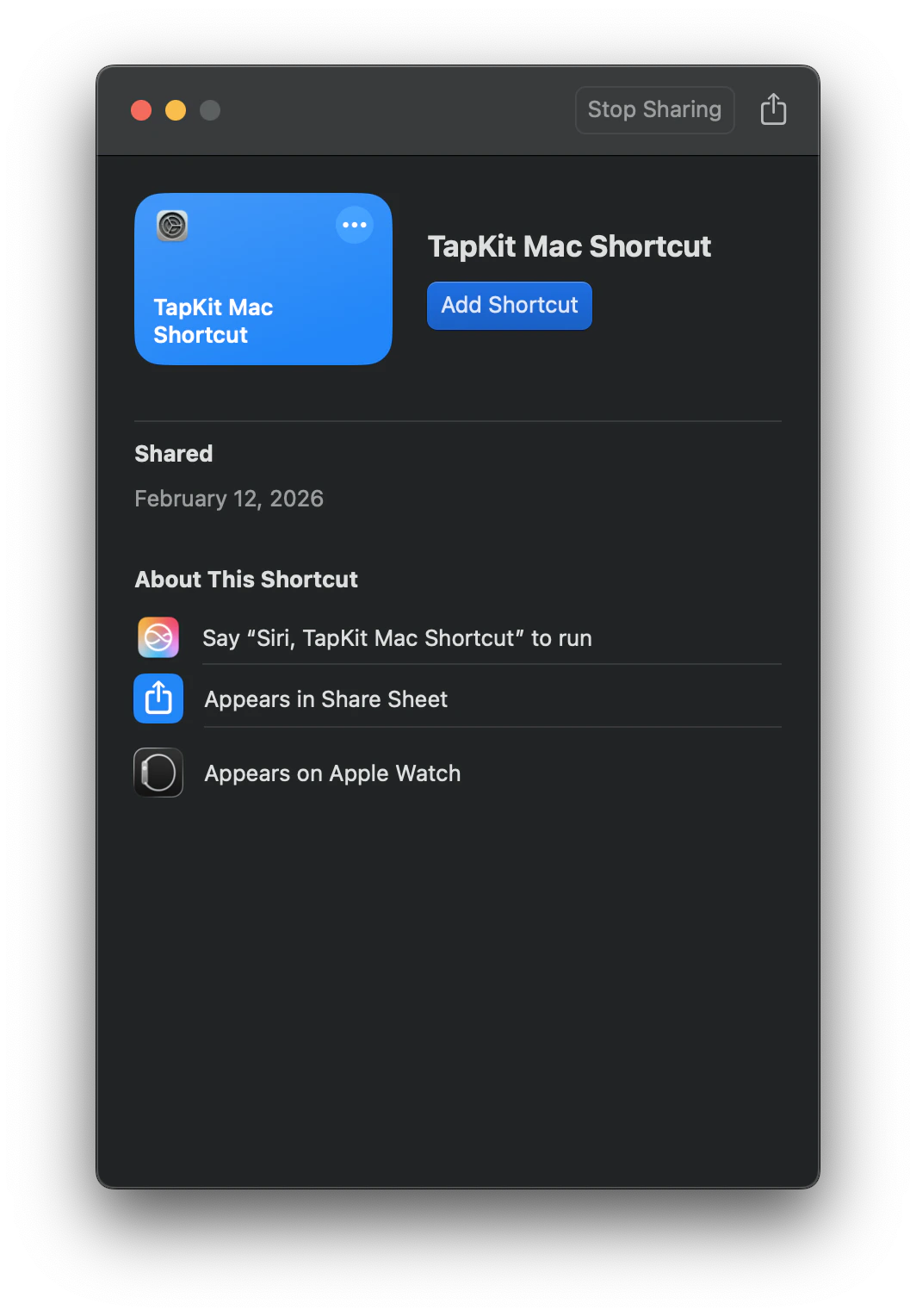
The app prompts you to install a macOS Shortcut that enables communication between the Mac app and your phone. Click **Add Shortcut** when prompted.
This Shortcut handles clipboard-based data transfer and automation commands. It's inspectable — you can view the full instruction list in the Shortcuts app anytime.
***
## Pause: Set up your iPhone
The Mac is ready. Now configure your iPhone.
Configure your iPhone for TapKit control — plug in, scan QR codes, enable Switch Control.
***
## Step 6: Pair your Mac to your iPhone
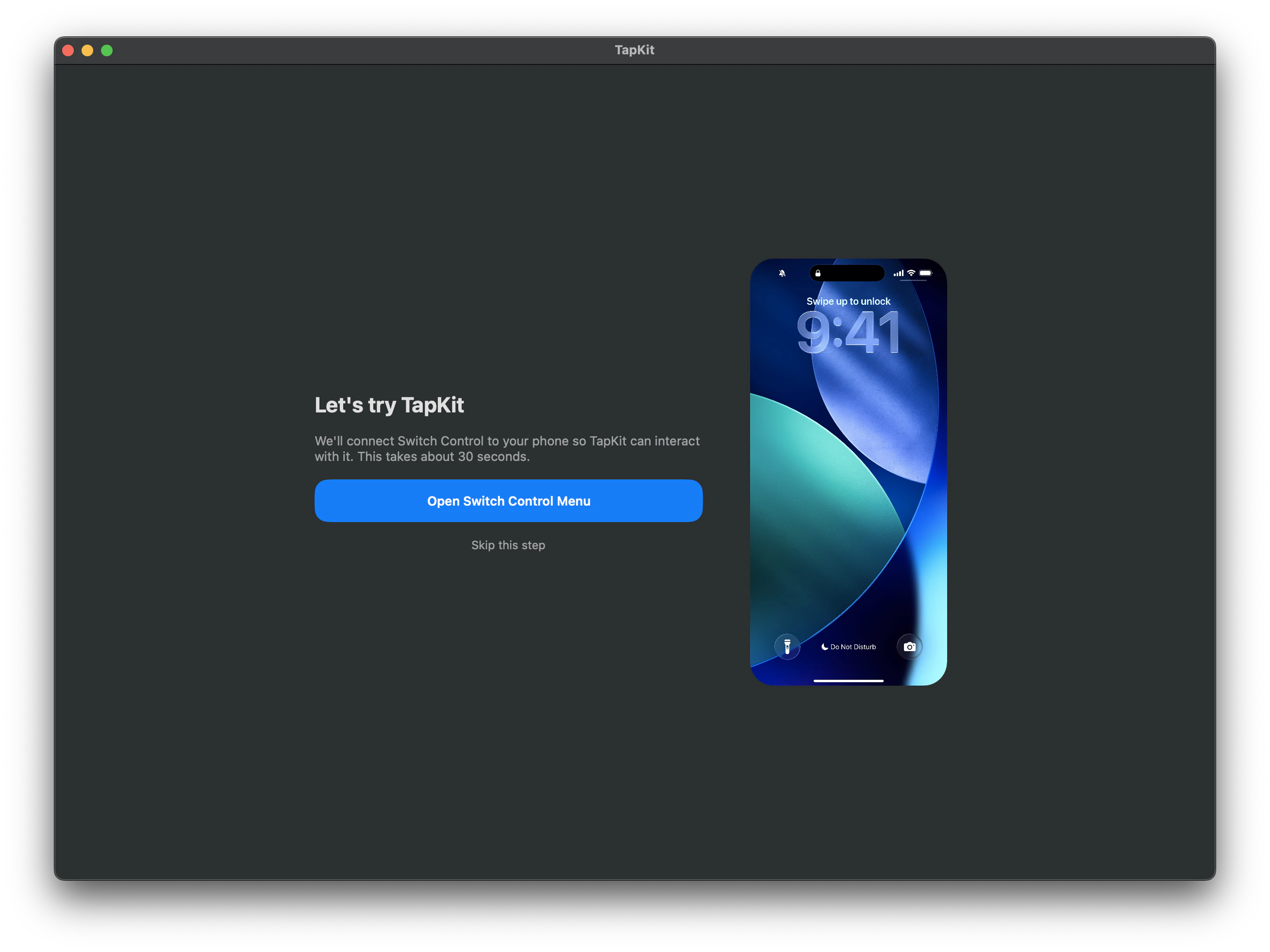
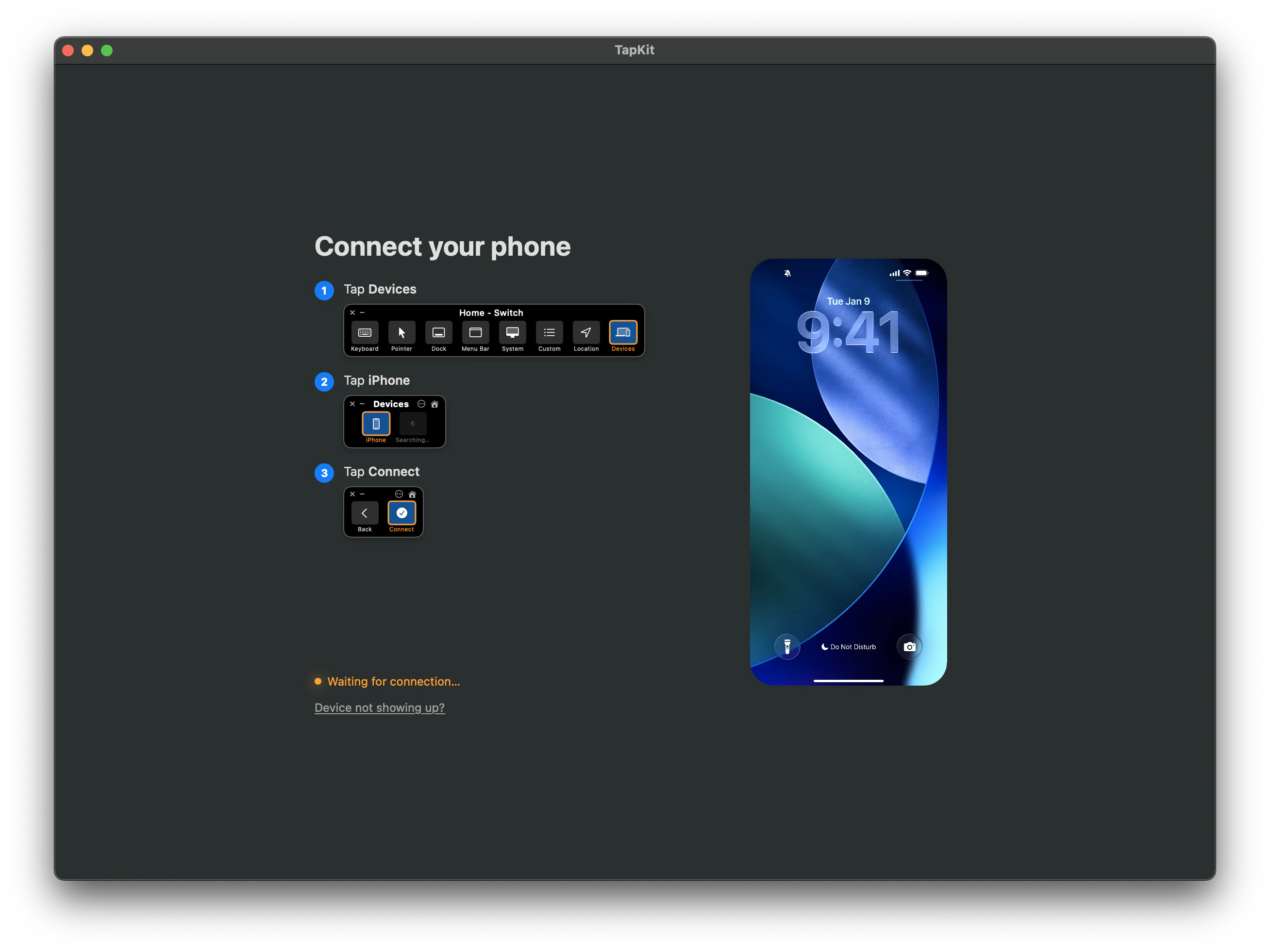
Once phone setup is complete, come back to the Mac app. You should see the **"Let's try TapKit"** screen.
1. Click **Open Switch Control Menu**. A black bar will appear at the top of your screen.
2. Click **Devices** in the Switch Control bar.
3. Select your **iPhone** from the list.
4. Click **Connect**.
Once connected, your phone's screen will appear in the Mac app and you're ready to go.
Make sure your iPhone is still plugged in via USB. Wi-Fi, Bluetooth, and iCloud are not required for this step.
## Troubleshooting
If macOS says the app is from an unidentified developer, right-click the app and choose **Open**, then click **Open** in the dialog. You only need to do this once.
Try restarting the Mac app. If the automatic configuration still fails, contact [support@tapkit.ai](mailto:support@tapkit.ai) with your macOS version and any error messages you see.
Make sure you're running macOS 12 (Monterey) or later. If the Shortcuts app isn't installed, you can get it from the Mac App Store. Try restarting the Mac app and clicking the install prompt again.
Verify both devices are on the same Wi-Fi network, Bluetooth is enabled, and both are signed into the same iCloud account. Try unplugging and replugging the USB cable.
If you're experiencing issues not covered here, [contact our support team](mailto:support@tapkit.ai).