> ## Documentation Index
> Fetch the complete documentation index at: https://docs.tapkit.ai/llms.txt
> Use this file to discover all available pages before exploring further.
# Mac App
> The host app that makes your phones available
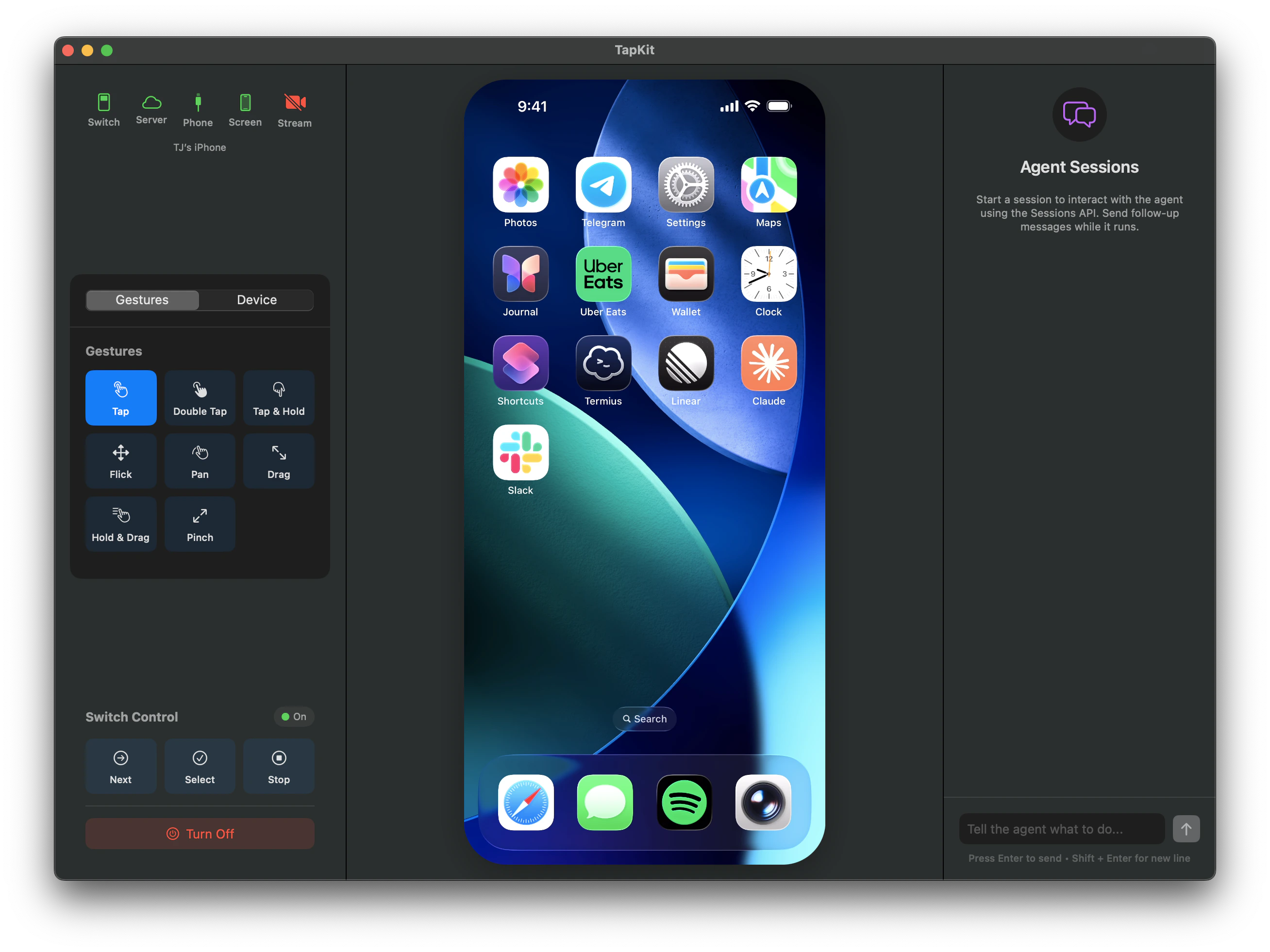
The TapKit Mac app is the host that connects physical iPhones to your TapKit account, making them available to any integration — Claude, Codex, the API, or any MCP client. No Mac app running, no phone access.
 ## Sidebar (left)
### Status bar
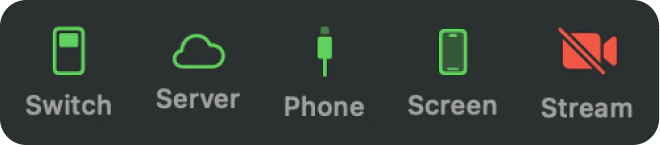
Five indicators at the top of the sidebar show system status at a glance. Green means connected, yellow means connecting, and red means disconnected or off.
## Sidebar (left)
### Status bar
Five indicators at the top of the sidebar show system status at a glance. Green means connected, yellow means connecting, and red means disconnected or off.
 | Indicator | What it means |
| ---------- | ----------------------------------------------------------------------------------------------------------------------------------- |
| **Switch** | Whether Switch Control is connected and running. Red = off, yellow = connecting, green = on. |
| **Server** | Whether you have a live connection to the TapKit server. Green = logged in and connected. Red = signed out or connection issues. |
| **Phone** | Whether your iPhone is detected as connected. |
| **Screen** | Whether the Mac is receiving the screen stream from your phone. Red if the phone is locked or something is interrupting the stream. |
| **Stream** | Whether someone else on your team is viewing the live stream on the web app. Green = someone is watching, red = no active viewers. |
### Gestures & Device Controls
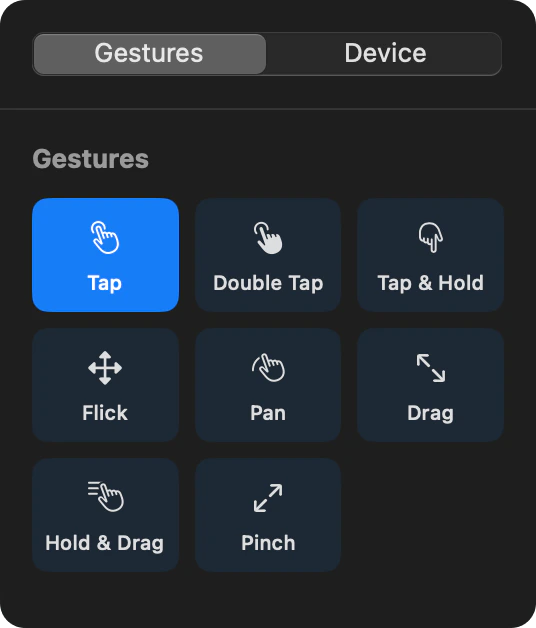
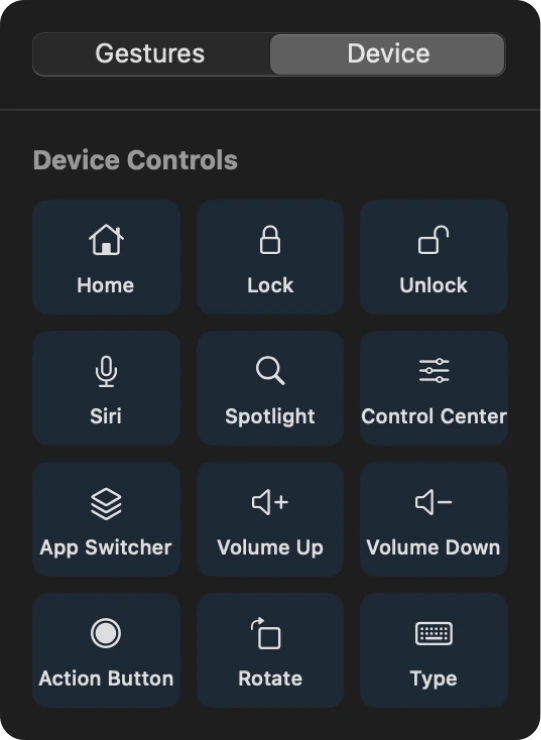
Below the device list, you can switch between **Gestures** and **Device** tabs. Gestures shows touch gestures (tap, swipe, pinch, etc.) and Device shows device controls (home, lock, volume, etc.). You can trigger these manually by clicking them — useful for testing or quick one-off actions.
### Switch Control
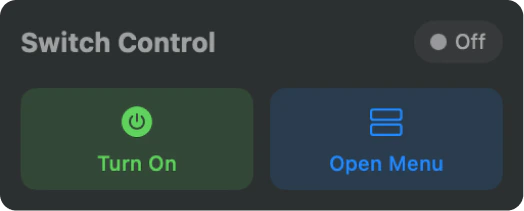
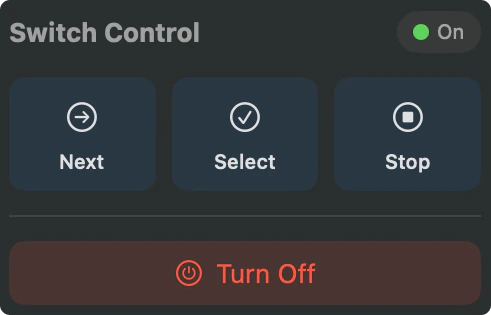
At the bottom left, the Switch Control section shows the connection status. When off, you can turn it on or open the Switch Control menu. When on, you get three buttons for interacting with Apple's Switch Control directly — **Next** iterates through items, **Select** selects the current item, and **Stop** stops scanning. These are there as a convenience in case Switch Control gets stuck or you want to control it manually.
## Phone view (center)
The center panel shows a live feed of the selected phone's screen. During an active task, you'll see the agent's actions happen in real-time — taps, swipes, typing, and navigation.
The screen updates continuously so you always know what the agent is doing and can intervene if needed.
## Agent chat (right)
The right panel is a built-in agent interface. Type a natural language prompt — like "Open Settings and turn on Dark Mode" — and the agent will execute it on the phone. This is the fastest way to test TapKit without setting up any external integrations.
## Settings
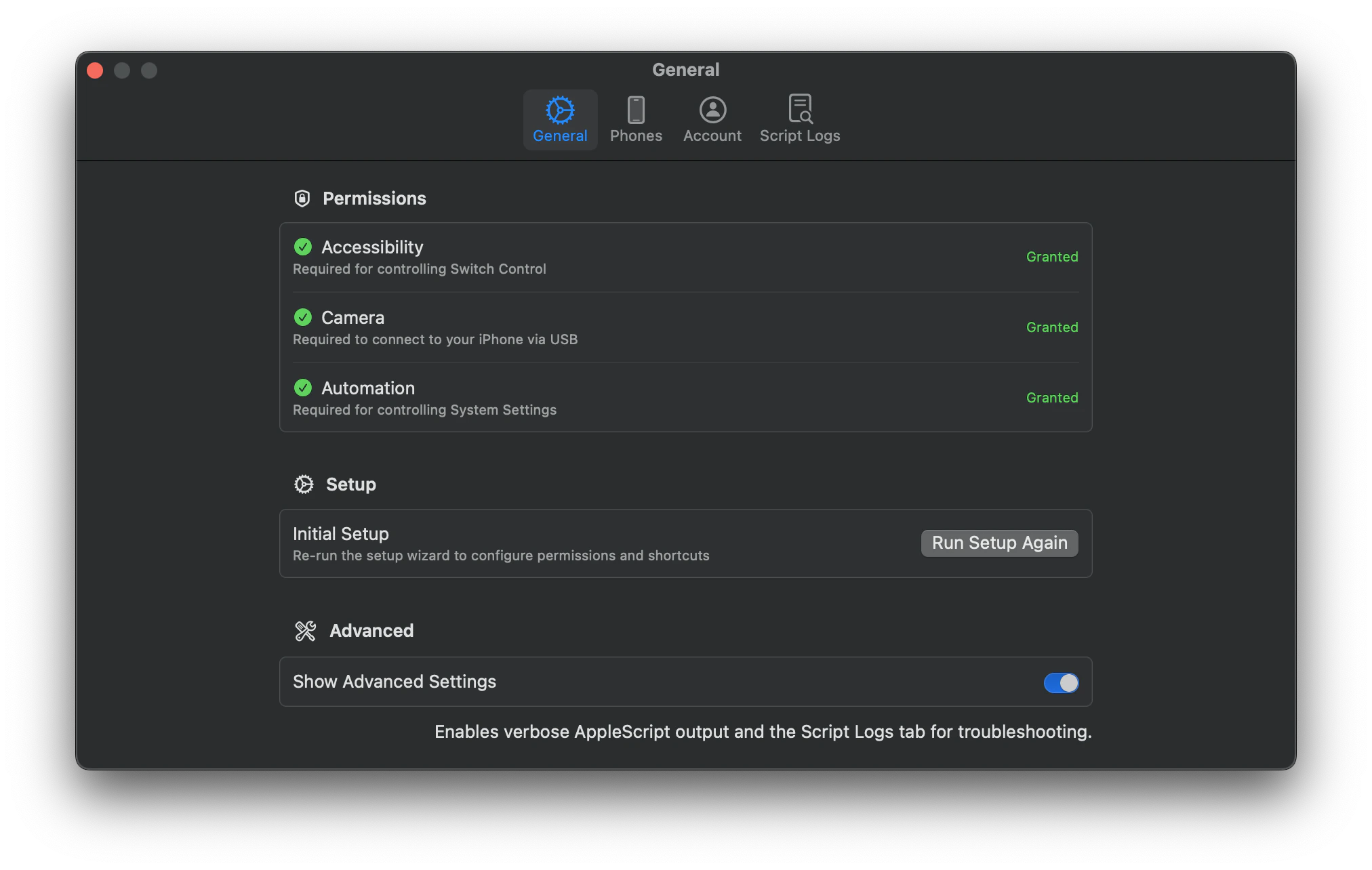
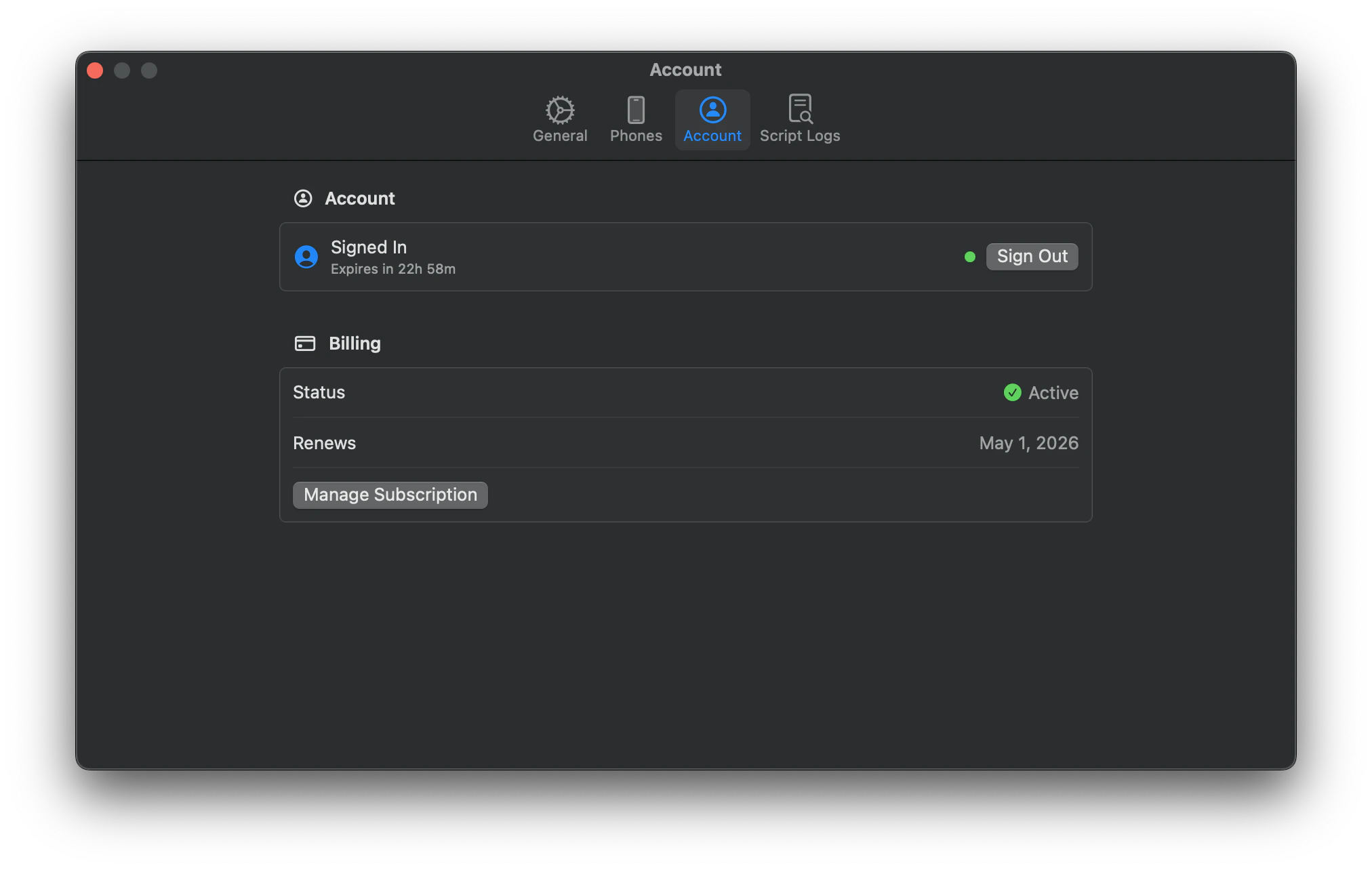
The settings window has four tabs: General, Phones, Account, and Script Logs.
View the status of your macOS permissions (Accessibility, Camera, Automation) and grant any that are missing. **Run Setup Again** takes you back to the beginning of the setup flow if you need to reconfigure or set up a new phone. **Show Advanced Settings** enables verbose AppleScript output and the Script Logs tab for troubleshooting.
| Indicator | What it means |
| ---------- | ----------------------------------------------------------------------------------------------------------------------------------- |
| **Switch** | Whether Switch Control is connected and running. Red = off, yellow = connecting, green = on. |
| **Server** | Whether you have a live connection to the TapKit server. Green = logged in and connected. Red = signed out or connection issues. |
| **Phone** | Whether your iPhone is detected as connected. |
| **Screen** | Whether the Mac is receiving the screen stream from your phone. Red if the phone is locked or something is interrupting the stream. |
| **Stream** | Whether someone else on your team is viewing the live stream on the web app. Green = someone is watching, red = no active viewers. |
### Gestures & Device Controls
Below the device list, you can switch between **Gestures** and **Device** tabs. Gestures shows touch gestures (tap, swipe, pinch, etc.) and Device shows device controls (home, lock, volume, etc.). You can trigger these manually by clicking them — useful for testing or quick one-off actions.
### Switch Control
At the bottom left, the Switch Control section shows the connection status. When off, you can turn it on or open the Switch Control menu. When on, you get three buttons for interacting with Apple's Switch Control directly — **Next** iterates through items, **Select** selects the current item, and **Stop** stops scanning. These are there as a convenience in case Switch Control gets stuck or you want to control it manually.
## Phone view (center)
The center panel shows a live feed of the selected phone's screen. During an active task, you'll see the agent's actions happen in real-time — taps, swipes, typing, and navigation.
The screen updates continuously so you always know what the agent is doing and can intervene if needed.
## Agent chat (right)
The right panel is a built-in agent interface. Type a natural language prompt — like "Open Settings and turn on Dark Mode" — and the agent will execute it on the phone. This is the fastest way to test TapKit without setting up any external integrations.
## Settings
The settings window has four tabs: General, Phones, Account, and Script Logs.
View the status of your macOS permissions (Accessibility, Camera, Automation) and grant any that are missing. **Run Setup Again** takes you back to the beginning of the setup flow if you need to reconfigure or set up a new phone. **Show Advanced Settings** enables verbose AppleScript output and the Script Logs tab for troubleshooting.
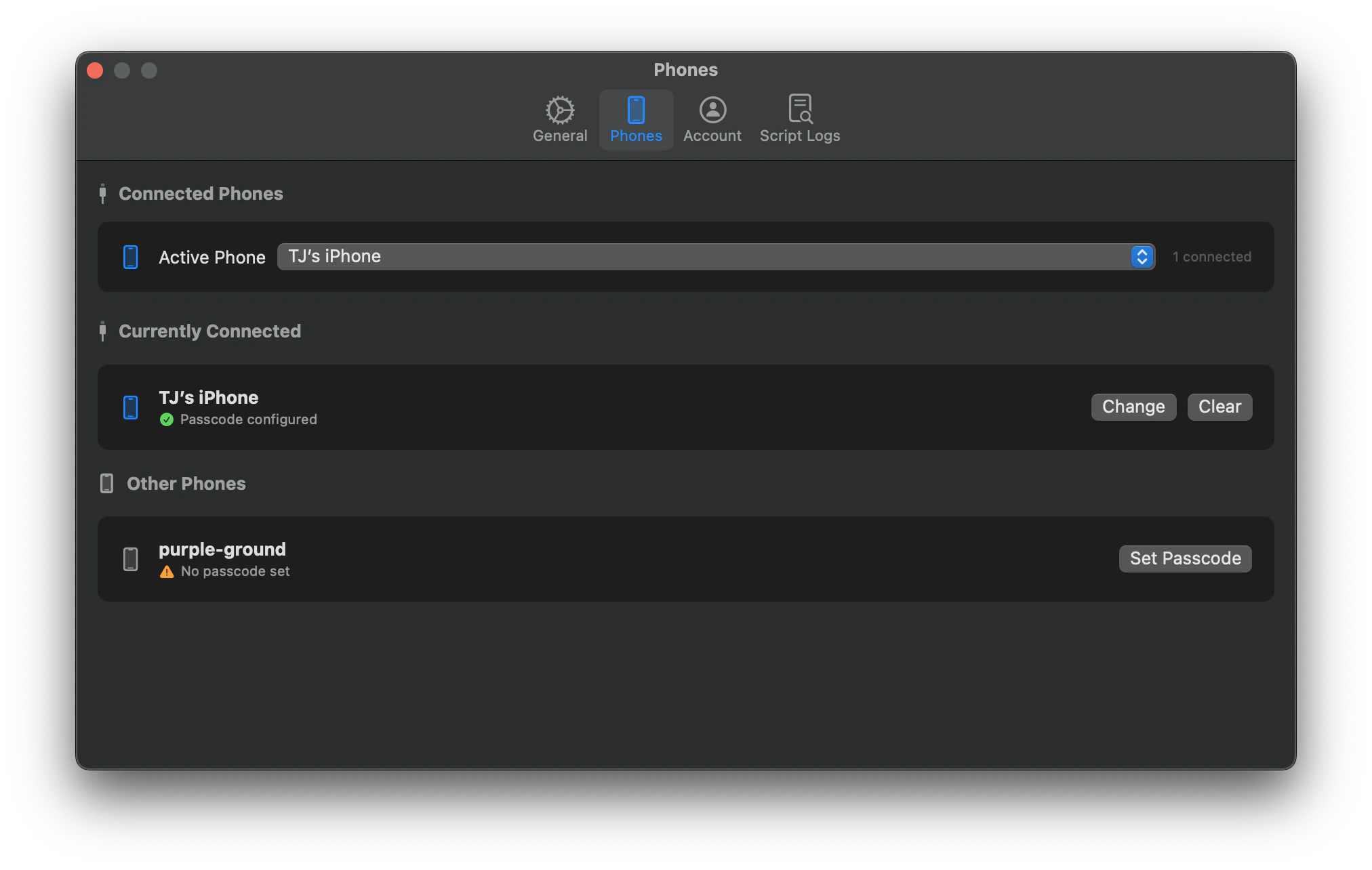
 Switch between multiple connected phones, set the active phone, and configure passcodes. Your phone's passcode is used to unlock it — TapKit stores it locally in your Mac's keychain and never uploads it to the server.
 View your sign-in status, sign out, and manage your subscription and billing.
 View verbose AppleScript logs for troubleshooting. Only visible when **Show Advanced Settings** is enabled in the General tab.