> ## Documentation Index
> Fetch the complete documentation index at: https://docs.tapkit.ai/llms.txt
> Use this file to discover all available pages before exploring further.

# Codex (App)

> Control iPhones from the Codex desktop app

The TapKit plugin for Codex gives the agent iPhone control in the desktop app. It installs an MCP server connection and a skill file that teaches Codex how to use the tools effectively.

<Note>
  This guide assumes you already have the Codex CLI installed. If you do not, follow OpenAI's [Codex CLI setup guide](https://developers.openai.com/codex/cli) first.
</Note>

## Step 1: Add the TapKit marketplace

Run this command in your terminal:

```bash theme={null}
codex plugin marketplace add jootsing-research/tapkit-plugins-codex
```

If the Codex app is already open, restart it so the new marketplace appears.

## Step 2: Open Plugins

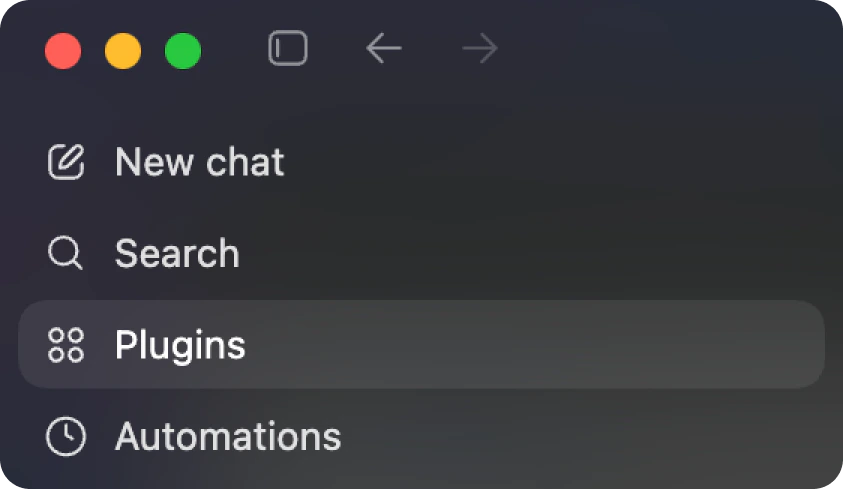
In the Codex app, click **Plugins** in the left sidebar.

<Accordion title="See screenshot">
  <Frame>
    <div style={{ display: 'flex', justifyContent: 'center', padding: '16px' }}>
      <img src="https://mintcdn.com/jootsingresearch/k-EDpyOgoGNAXCsa/images/codex-app-plugins.png?fit=max&auto=format&n=k-EDpyOgoGNAXCsa&q=85&s=0116a5d012881edd22830c0060e73212" alt="Codex app sidebar with Plugins selected" style={{ maxWidth: '70%', borderRadius: '12px' }} width="843" height="489" data-path="images/codex-app-plugins.png" />
    </div>
  </Frame>
</Accordion>

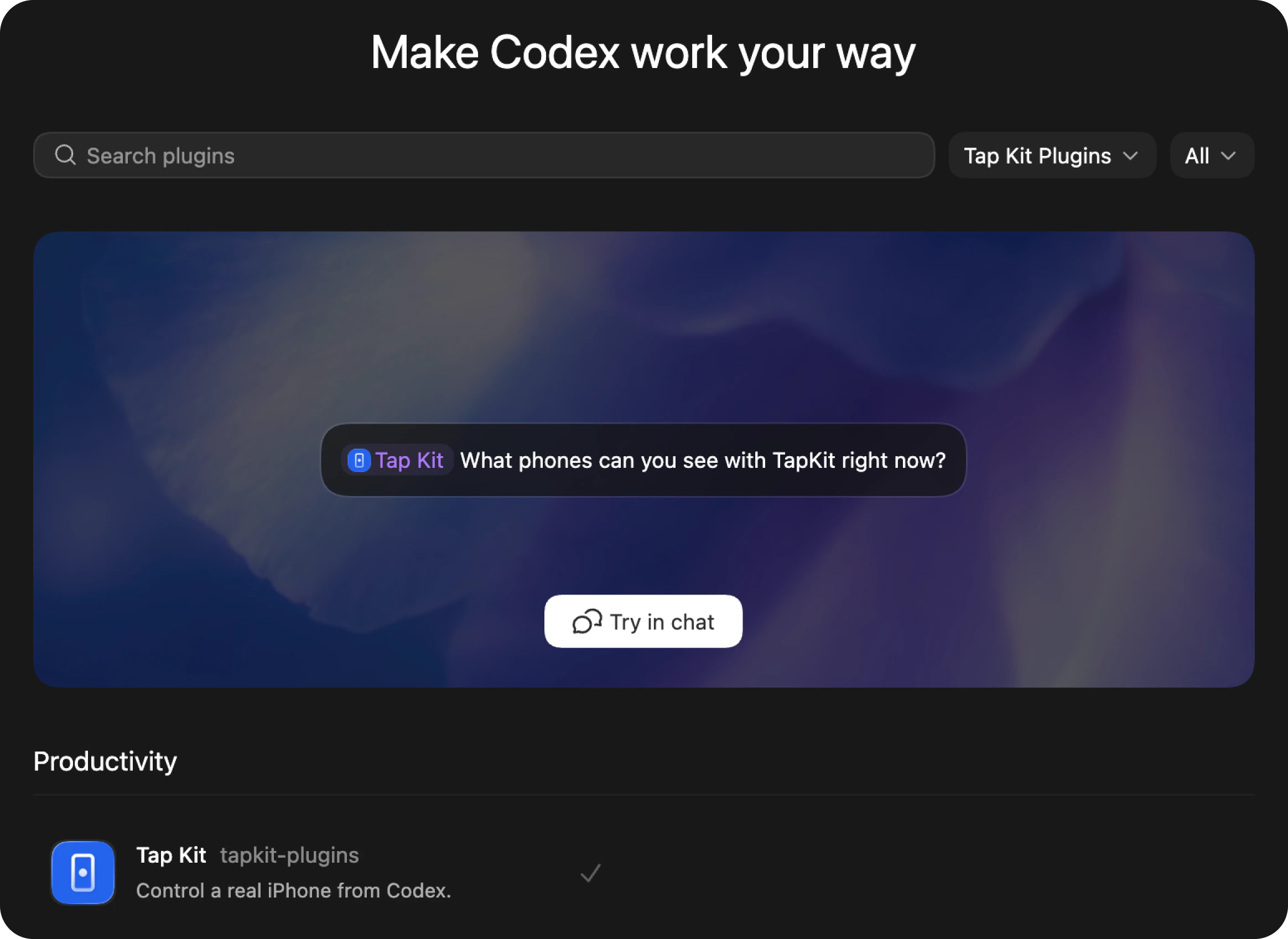
## Step 3: Select the TapKit marketplace

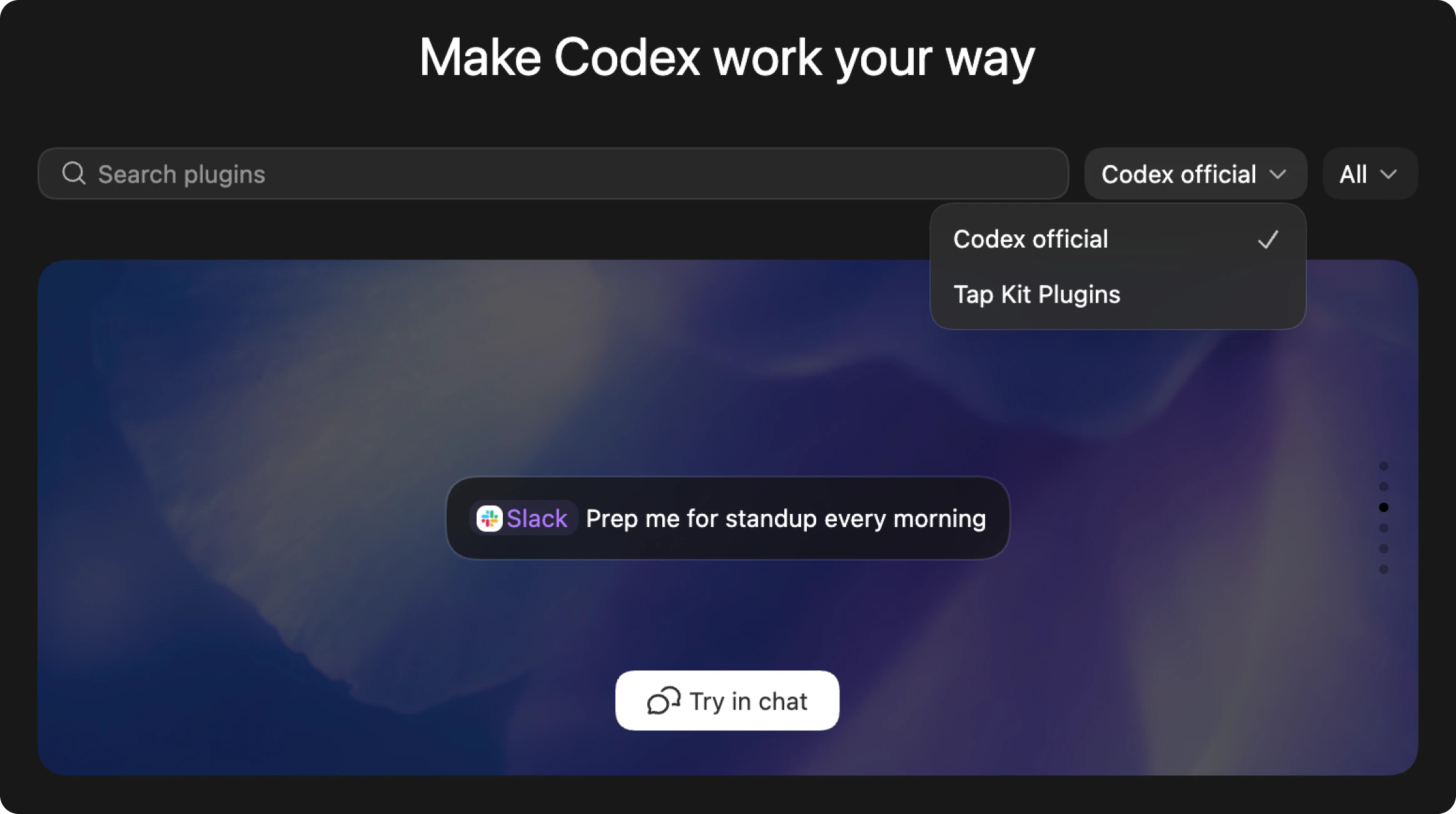
On the Plugins page, open the marketplace dropdown and select **Tap Kit Plugins**.

<Accordion title="See screenshot">
  <Frame>
    <div style={{ display: 'flex', justifyContent: 'center', padding: '16px' }}>
      <img src="https://mintcdn.com/jootsingresearch/k-EDpyOgoGNAXCsa/images/codex-app-marketplace-dropdown.png?fit=max&auto=format&n=k-EDpyOgoGNAXCsa&q=85&s=25f40f376e5a986f3a7a8f8041f42236" alt="Codex plugins page marketplace dropdown showing Tap Kit Plugins" style={{ maxWidth: '100%', borderRadius: '12px' }} width="2328" height="1302" data-path="images/codex-app-marketplace-dropdown.png" />
    </div>
  </Frame>
</Accordion>

## Step 4: Install the TapKit plugin

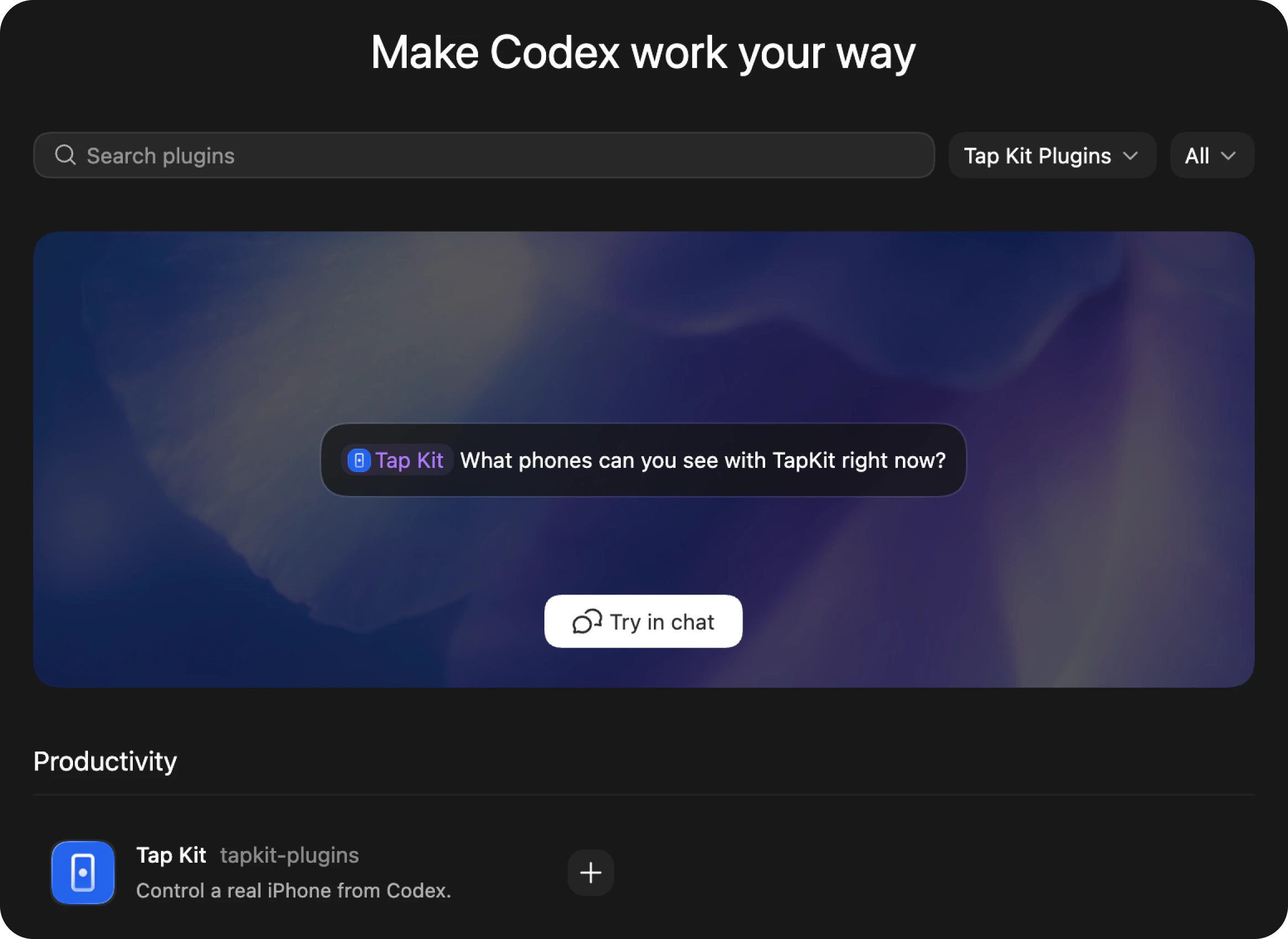
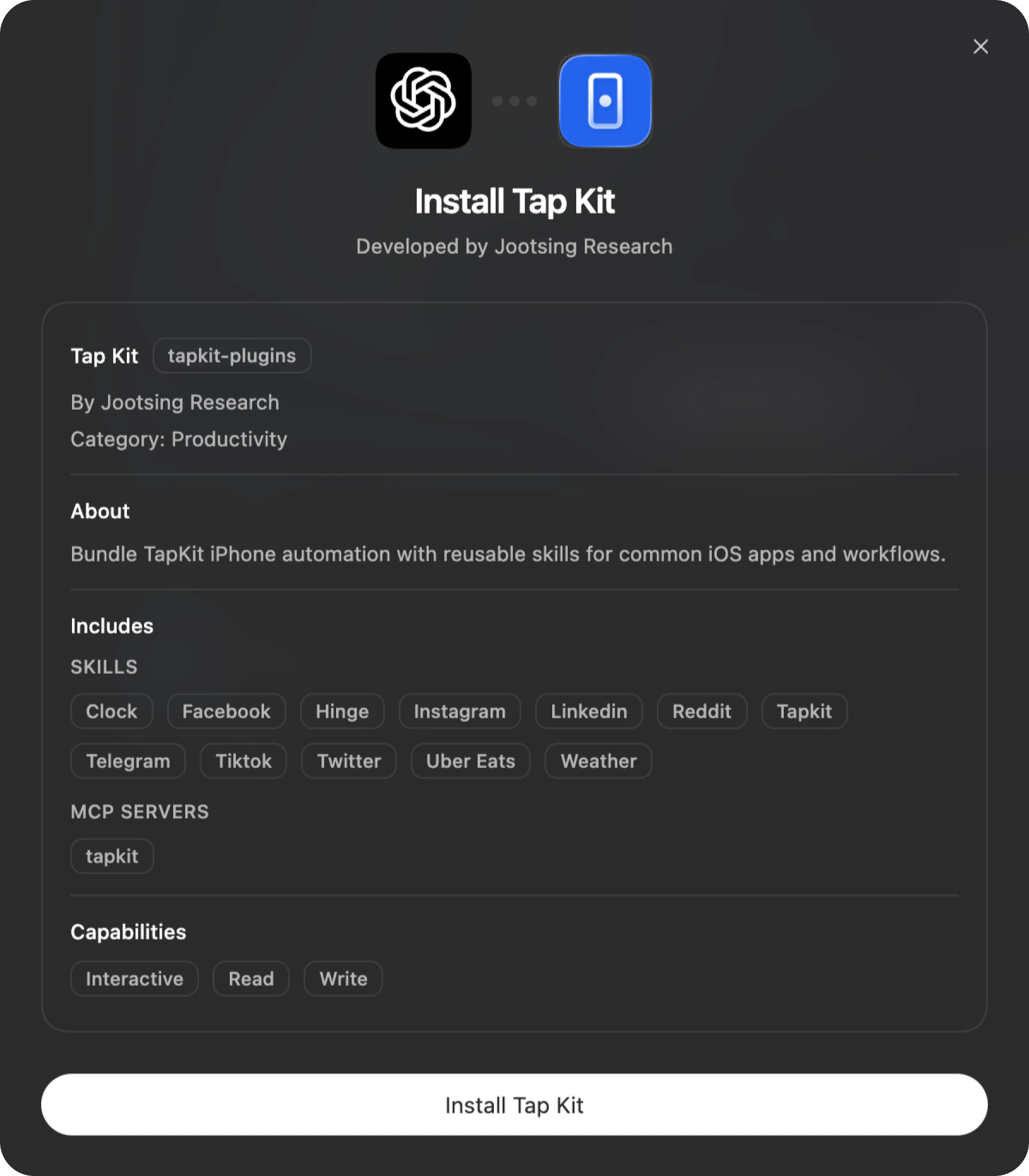
Find **Tap Kit** under **Productivity**, click the **+** button, then click **Install Tap Kit** in the popup.

<Accordion title="See screenshots">
  <Frame>
    <div style={{ display: 'flex', flexDirection: 'column', gap: '16px', alignItems: 'center', padding: '16px' }}>
      <img src="https://mintcdn.com/jootsingresearch/k-EDpyOgoGNAXCsa/images/codex-app-tapkit-not-installed.png?fit=max&auto=format&n=k-EDpyOgoGNAXCsa&q=85&s=146804a4223f168c892740a16fd2f7ce" alt="Codex plugins page showing Tap Kit with plus button" style={{ maxWidth: '100%', borderRadius: '12px' }} width="2328" height="1698" data-path="images/codex-app-tapkit-not-installed.png" />

      <img src="https://mintcdn.com/jootsingresearch/k-EDpyOgoGNAXCsa/images/codex-app-install-popup.png?fit=max&auto=format&n=k-EDpyOgoGNAXCsa&q=85&s=f3251036c691a0a27972fd9e23177690" alt="Install Tap Kit popup with Install Tap Kit button" style={{ maxWidth: '80%', borderRadius: '12px' }} width="1800" height="2058" data-path="images/codex-app-install-popup.png" />
    </div>
  </Frame>
</Accordion>

## Step 5: Confirm TapKit is installed

After installation, TapKit shows a checkmark in the plugin list.

<Accordion title="See screenshot">
  <Frame>
    <div style={{ display: 'flex', justifyContent: 'center', padding: '16px' }}>
      <img src="https://mintcdn.com/jootsingresearch/k-EDpyOgoGNAXCsa/images/codex-app-installed.png?fit=max&auto=format&n=k-EDpyOgoGNAXCsa&q=85&s=956ab85b0da2625b722d915f32a22079" alt="Codex plugins page showing Tap Kit installed with checkmark" style={{ maxWidth: '100%', borderRadius: '12px' }} width="2328" height="1698" data-path="images/codex-app-installed.png" />
    </div>
  </Frame>
</Accordion>

## Step 6: Authenticate

Once the plugin is loaded, the TapKit MCP server will prompt you to sign in via your browser.

## Verify it works

```
Take a screenshot of my phone
```

If a phone is connected via the Mac app, you'll see the screenshot.

## Upgrade

Refresh the TapKit marketplace when a new plugin version is available:

```bash theme={null}
codex plugin marketplace upgrade tapkit-plugins
```

`tapkit-plugins` is the Codex marketplace name from the marketplace metadata.

## What's in the plugin

The TapKit plugin bundles:

* **MCP server config** — connects Codex to TapKit's hosted MCP endpoint
* **Skills** — teaches Codex how to use the coordinate system, screenshot loop, and gesture types

## Links

* [TapKit Codex plugin on GitHub](https://github.com/Jootsing-Research/tapkit-plugins-codex)
* [Codex plugin docs](https://developers.openai.com/codex/plugins)
* [API Reference](/api-reference/introduction)