> ## Documentation Index
> Fetch the complete documentation index at: https://docs.tapkit.ai/llms.txt
> Use this file to discover all available pages before exploring further.

# Claude (App)

> Control iPhones from Claude Chat, Cowork, and Code

You can use TapKit in any of the Claude apps — it works in Chat, Cowork, and Code. To get started, you'll set it up through the Claude app in either Cowork or Code.

## Step 1: Add the TapKit plugin marketplace

1. Open **Cowork** in the Claude app.
2. In the left sidebar, click **Customize**.
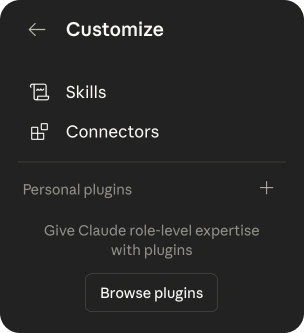
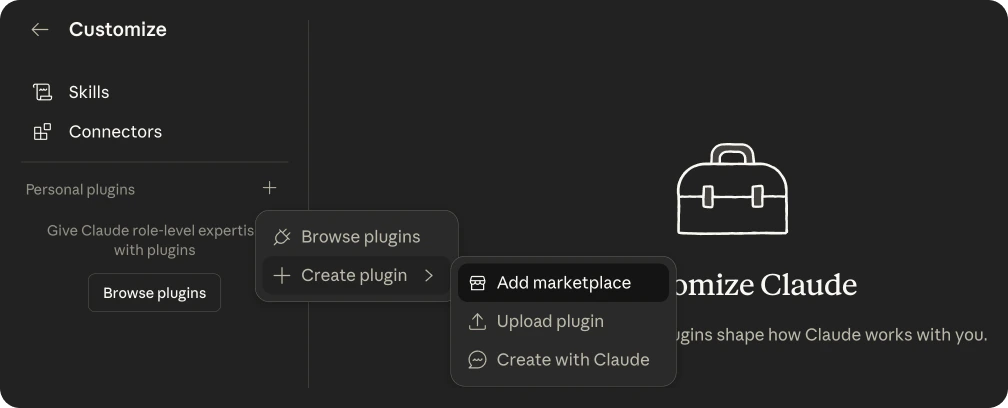
3. Go to **Personal Plugins** and click the **+** button.
4. You'll see a popup with **Browse Plugins** and **Create Plugin** — hover over **Create Plugin**.
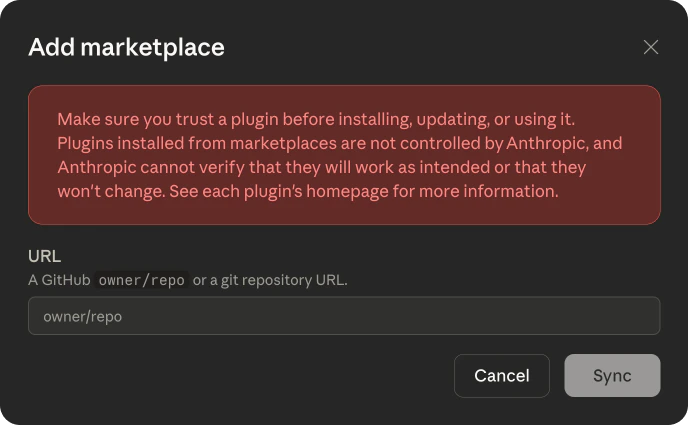
5. Click **Add Marketplace**.
6. In the popup, paste the following:

```
jootsing-research/tapkit-plugins-claude
```

<Accordion title="See screenshots">
  <Frame>
    <div style={{ display: 'flex', flexDirection: 'column', gap: '16px', alignItems: 'center', padding: '16px' }}>
      <img src="https://mintcdn.com/jootsingresearch/hMFhwInTG2A5PHhN/images/claude-app-add-marketplace.png?fit=max&auto=format&n=hMFhwInTG2A5PHhN&q=85&s=7fa7076c763b7207e89ba46f6a7853e4" alt="Customize sidebar showing Personal Plugins, Create Plugin, and Add Marketplace" style={{ maxWidth: '100%', borderRadius: '12px' }} width="1008" height="408" data-path="images/claude-app-add-marketplace.png" />

      <img src="https://mintcdn.com/jootsingresearch/hMFhwInTG2A5PHhN/images/claude-app-add-marketplace-popup.png?fit=max&auto=format&n=hMFhwInTG2A5PHhN&q=85&s=6436a7ea791345524984291a3bebc8e3" alt="Add marketplace popup with URL field for owner/repo" style={{ maxWidth: '80%', borderRadius: '12px' }} width="688" height="425" data-path="images/claude-app-add-marketplace-popup.png" />
    </div>
  </Frame>
</Accordion>

## Step 2: Install the TapKit plugin

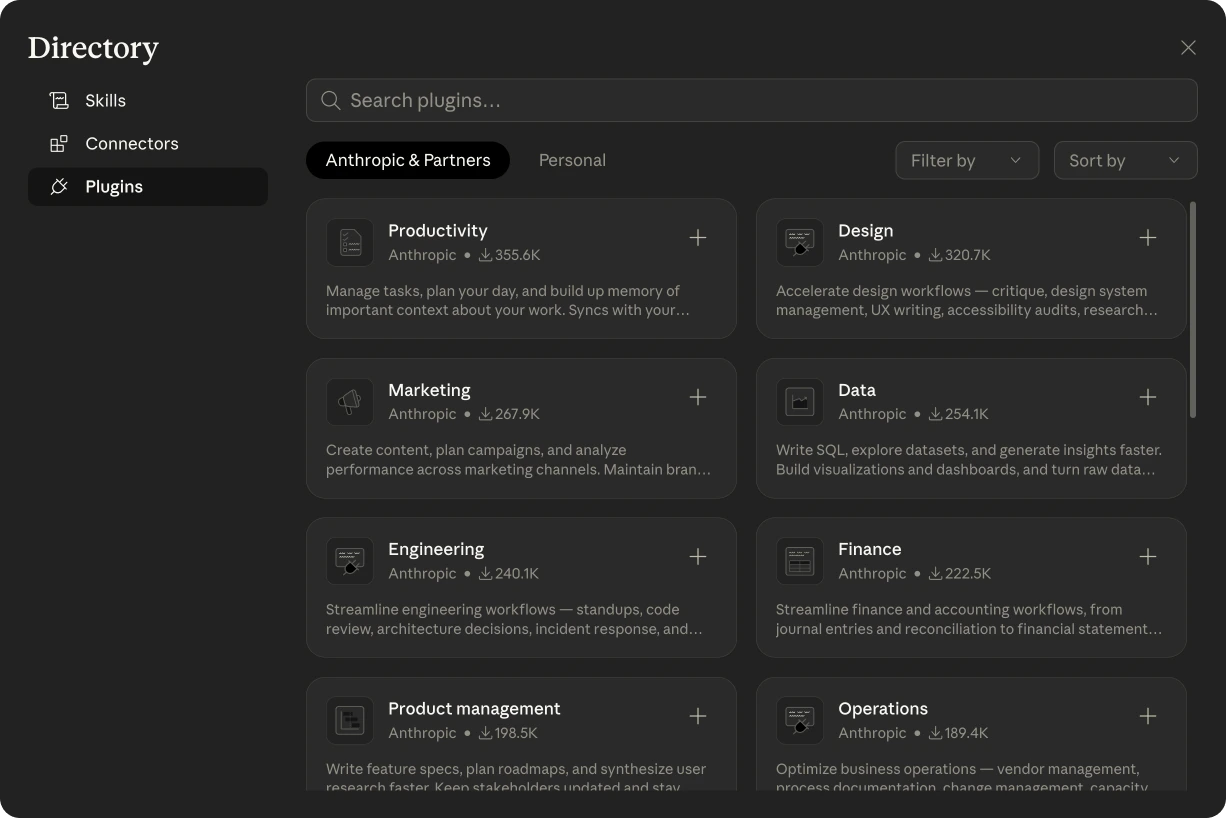
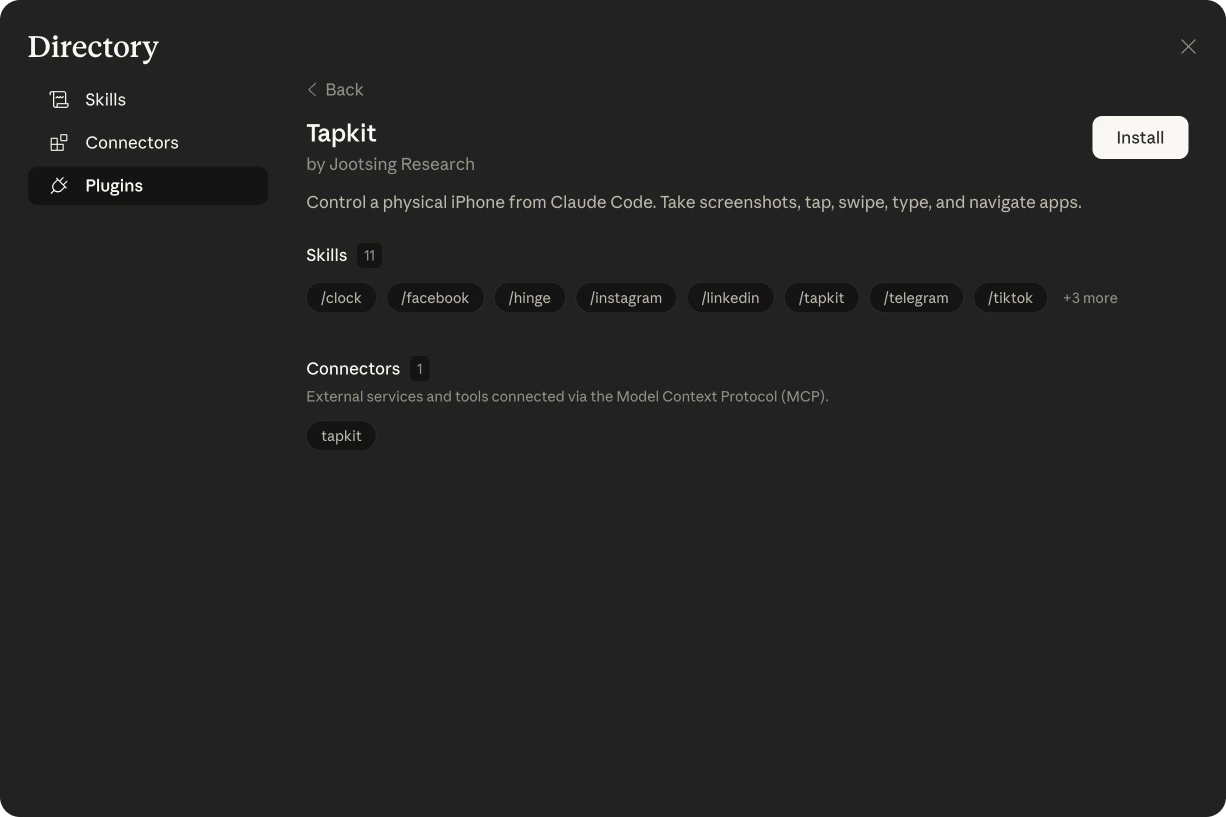
1. Still in Cowork under **Customize**, click **Browse Plugins**.
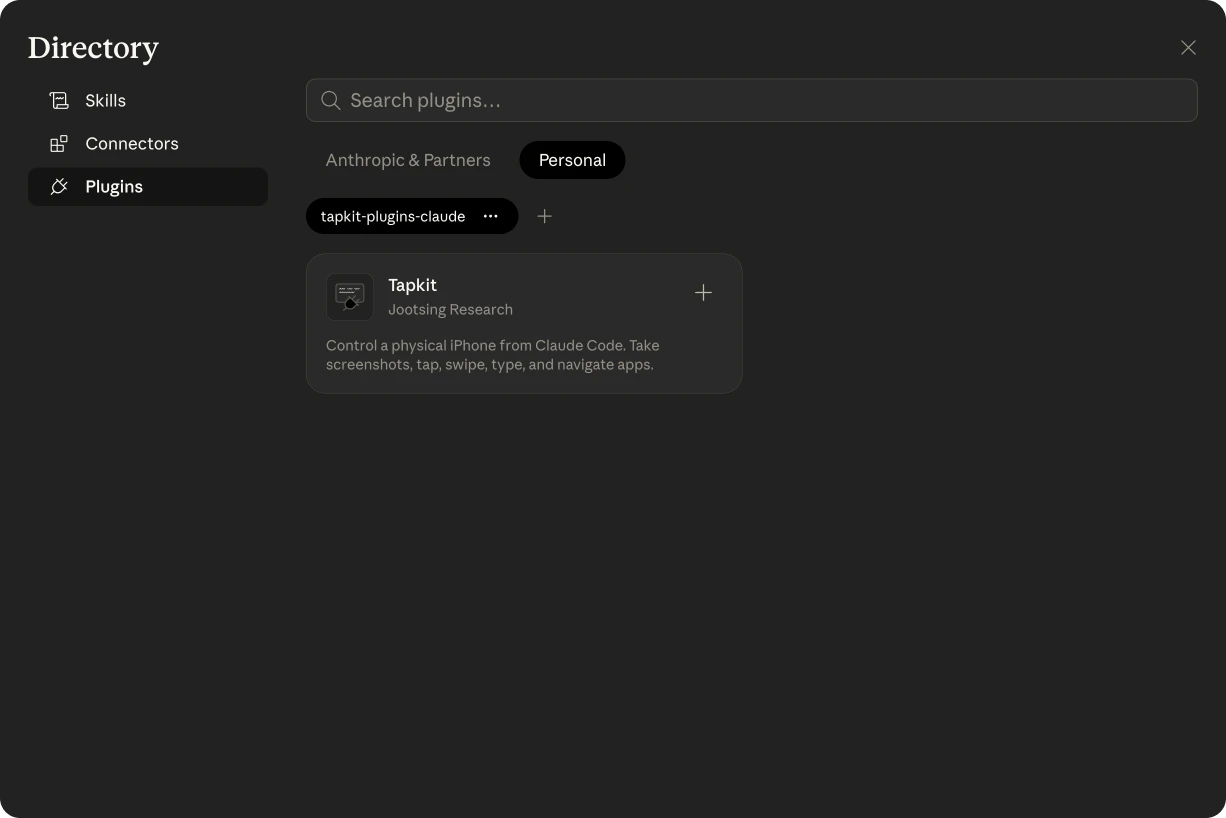
2. Find the **TapKit** plugin in the list.
3. Click **Install**, then click **Manage**.

You should now see TapKit listed under **Personal Plugins** in the Customize sidebar.

<Accordion title="See screenshots — navigate to Browse Plugins">
  <Frame>
    <div style={{ display: 'flex', gap: '12px', justifyContent: 'center', alignItems: 'flex-start', padding: '16px' }}>
      <img src="https://mintcdn.com/jootsingresearch/hMFhwInTG2A5PHhN/images/claude-app-browse-plugins.png?fit=max&auto=format&n=hMFhwInTG2A5PHhN&q=85&s=082af96089d8db9e9b88f3bdb83f4bb6" alt="Customize sidebar with Browse Plugins button" style={{ maxWidth: '30%', borderRadius: '12px' }} width="304" height="333" data-path="images/claude-app-browse-plugins.png" />

      <img src="https://mintcdn.com/jootsingresearch/hMFhwInTG2A5PHhN/images/claude-app-directory.png?fit=max&auto=format&n=hMFhwInTG2A5PHhN&q=85&s=bfe4eee5e0e57d162d27c6a4c05c3595" alt="Directory showing Anthropic and Partners plugins" style={{ maxWidth: '65%', borderRadius: '12px' }} width="1226" height="818" data-path="images/claude-app-directory.png" />
    </div>
  </Frame>
</Accordion>

<Accordion title="See screenshots — find and install TapKit">
  <Frame>
    <div style={{ display: 'flex', flexDirection: 'column', gap: '16px', alignItems: 'center', padding: '16px' }}>
      <img src="https://mintcdn.com/jootsingresearch/hMFhwInTG2A5PHhN/images/claude-app-personal.png?fit=max&auto=format&n=hMFhwInTG2A5PHhN&q=85&s=919ce3fdd5f79e116380d9f8cd97401c" alt="Personal tab showing tapkit-plugins-claude marketplace with Tapkit plugin" style={{ maxWidth: '100%', borderRadius: '12px' }} width="1226" height="818" data-path="images/claude-app-personal.png" />

      <img src="https://mintcdn.com/jootsingresearch/hMFhwInTG2A5PHhN/images/claude-app-tapkit-install.png?fit=max&auto=format&n=hMFhwInTG2A5PHhN&q=85&s=5adc9f376cb7cdc03316dc735fcd72bb" alt="Tapkit plugin page with Install button, skills, and connectors" style={{ maxWidth: '100%', borderRadius: '12px' }} width="1226" height="817" data-path="images/claude-app-tapkit-install.png" />
    </div>
  </Frame>
</Accordion>

## Step 3: Give it permission

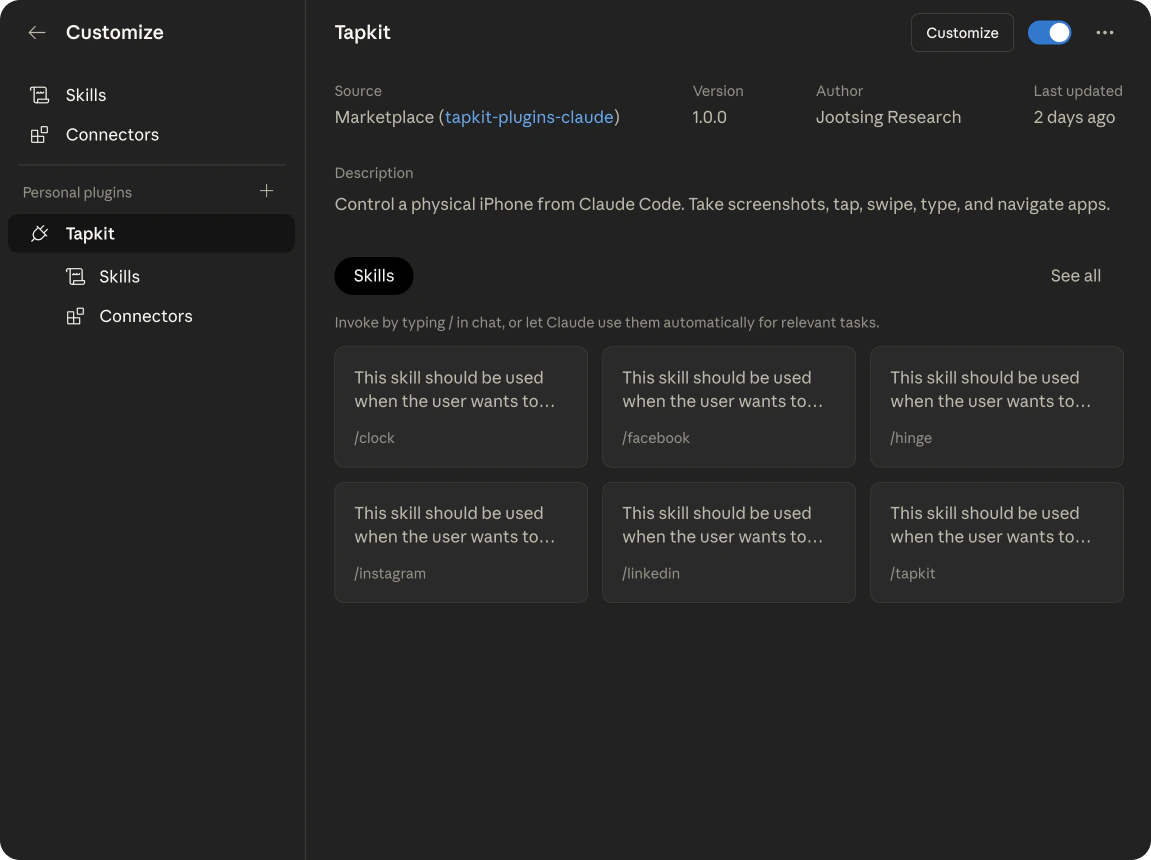
1. In the Customize sidebar, click on the **TapKit** plugin.
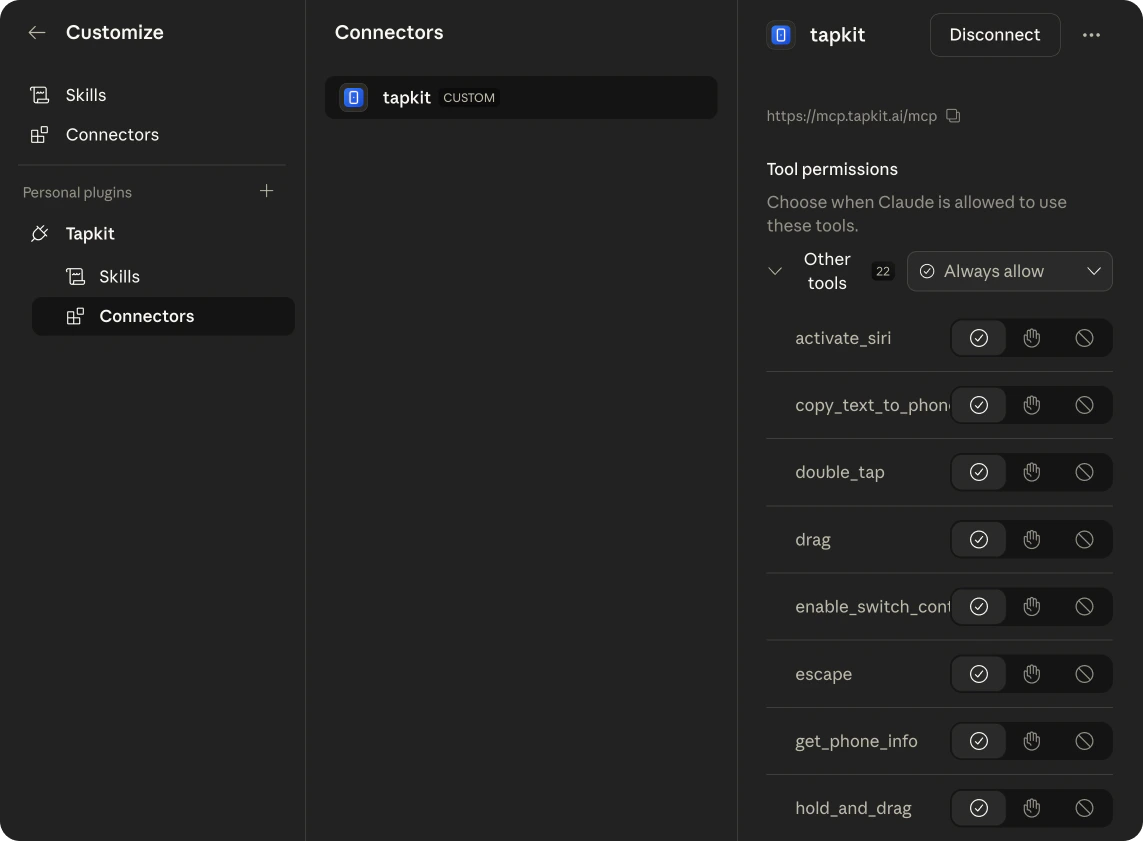
2. Click on **Connectors**, then select the **TapKit** connector.
3. On the right side next to the tools, set the permission to **Always allow**.

<Accordion title="See screenshots">
  <Frame>
    <div style={{ display: 'flex', flexDirection: 'column', gap: '16px', alignItems: 'center', padding: '16px' }}>
      <img src="https://mintcdn.com/jootsingresearch/hMFhwInTG2A5PHhN/images/claude-app-tapkit-plugin.png?fit=max&auto=format&n=hMFhwInTG2A5PHhN&q=85&s=4bf86e9f4a202c007923e7003ae15ad9" alt="TapKit plugin in Customize sidebar showing Skills and Connectors" style={{ maxWidth: '100%', borderRadius: '12px' }} width="1151" height="860" data-path="images/claude-app-tapkit-plugin.png" />

      <img src="https://mintcdn.com/jootsingresearch/hMFhwInTG2A5PHhN/images/claude-app-tapkit-connector.png?fit=max&auto=format&n=hMFhwInTG2A5PHhN&q=85&s=4db58693de074feffca9911f48bf31a1" alt="TapKit connector with Tool permissions set to Always allow" style={{ maxWidth: '100%', borderRadius: '12px' }} width="1143" height="841" data-path="images/claude-app-tapkit-connector.png" />
    </div>
  </Frame>
</Accordion>

Once set up, TapKit is available across all Claude apps — Chat, Cowork, and Code.

## Example prompts

Try these to get started:

* "Open Settings and take a screenshot"
* "Go to Safari and search for flights to Denver"
* "Open DoorDash and order from the first restaurant"
* "Take a screenshot and tell me what apps are on the home screen"

## Troubleshooting

<AccordionGroup>
  <Accordion title="Claude says TapKit isn't connected">
    Make sure the TapKit Mac app is running with a phone connected. You may need to re-authenticate the plugin.
  </Accordion>

  <Accordion title="Actions are timing out">
    Check that your phone is awake and the screen is on. Switch Control must be enabled on the iPhone. If the Mac app shows the phone as disconnected, unplug and replug the USB cable.
  </Accordion>

  <Accordion title="Phone not showing up in available devices">
    If you have multiple phones, Claude may need to select the right one. Ask Claude to "list my available phones" and then specify which one to use.
  </Accordion>
</AccordionGroup>